Introduction
We all know someone who has attended a meeting and then can’t recall what was discussed. Handwriting distracts from the discussion. Quick typing leads to missing the important points. This is where the Notion AI Meeting Notes come into play. Records, transcribes and summarizes your meetings automatically — without leaving your Notion workspace. Here, you’ll discover how the feature functions, how to configure it, and how to maximize its value.
Table of Contents
What Is Notion AI Meeting Notes?
Notion AI Meeting Notes is an in-built characteristic of Notion that automatically generates organized notes from your meetings. Gathers audio live from your device, including your microphone and system audio, and plays it back with any platform that supports meetings, such as Zoom, Google Meet, Microsoft Teams, or a face-to-face meeting.
The feature was officially released in May 2025, with significant updates since then. The 2026 updates (Notion versions 2.51 and 3.1) include the introduction of transcript-linked summaries, which enable you to click on any takeaway and instantly navigate to that point in the conversation. You can also prepare for meetings before they even start, with calendar integration with Google Calendar and Notion Calendar.
Notion pumps the meeting tool to the background, unlike other meeting tools that have a bot join your meeting. The bot is not present in your meeting room. It just listens on the computer and works on its own.
Why Traditional Meeting Notes Fall Short
The traditional writing of notes comes with serious issues. As you are writing, you have blind spots. As you’re writing, you get blind spots. If you get into the discussion you lose focus of writing. This leaves you with notes that are short and sketchy – not helpful for future reference.
There is a lot of admin time spent after team meetings, summarizing, formatting and disseminating notes, etc. — that takes up a lot of time every week. Action items are lost. Decisions go undocumented. Individuals who are unable to attend a meeting will not have a means to make up for it.
AI Meeting Notes provide a solution to all of this. The tool listens and writes for you so you can participate in the meeting. Once completed, it’s all set and waiting for sharing!
How to Set Up Notion AI Meeting Notes
Getting started is simple. Here is a step-by-step guide to help you set it up quickly.
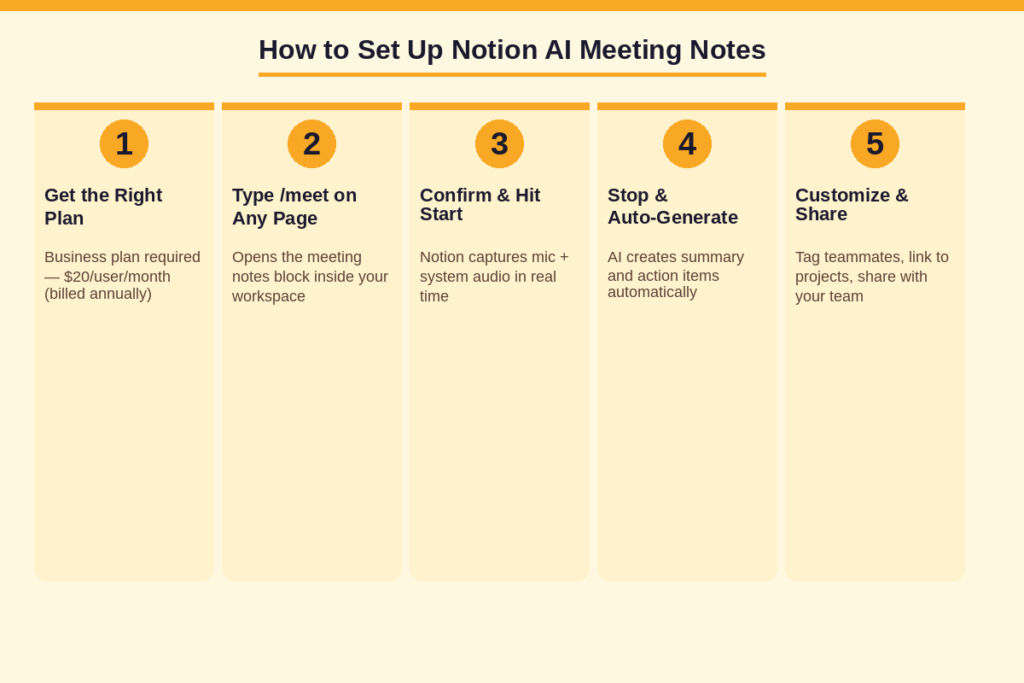
Step 1: Make Sure You Are on the Right Plan
This feature will be limited to the Business plan or greater for 2026. The Business plan is $20/month billed annually or $24/month billed monthly. New users will be denied access to the previous $10 per month AI add on.
Step 2: Open a Page and Type /meet
Navigate to any page in your workspace in Notion. Write /meet and a block of meeting notes will appear. Tap the block to display the Recording panel. You will be asked if you agree to the recording, click to agree and you’re good to go.
Step 3: Start Your Meeting and Record
Click on the Start button and start your meeting as usual. Notion will be listening to all of the communication that occurs through your device speakers and microphone in the background. As the meeting proceeds, a live transcript of it will be displayed.
Step 4: End the Recording and Review
Once the meeting has ended, click Stop. Notion AI will analyze the transcript and create a summarized version and actionable list. There is a hyperlink that connects each action item to the specific part of the transcript where it was identified.
Step 5: Customize and Share
The summary, tag team members in action items, link notes to current project databases and share the page with your team can be edited. Custom format instructions will automatically allow all future meetings to be structured in the same way.
Pro Tip: Use a customized meeting template for your first recording. It takes just 5 minutes and makes sure that all meeting notes are uniform throughout your team.
Key Features of Notion AI Meeting Notes
Real-Time Transcription
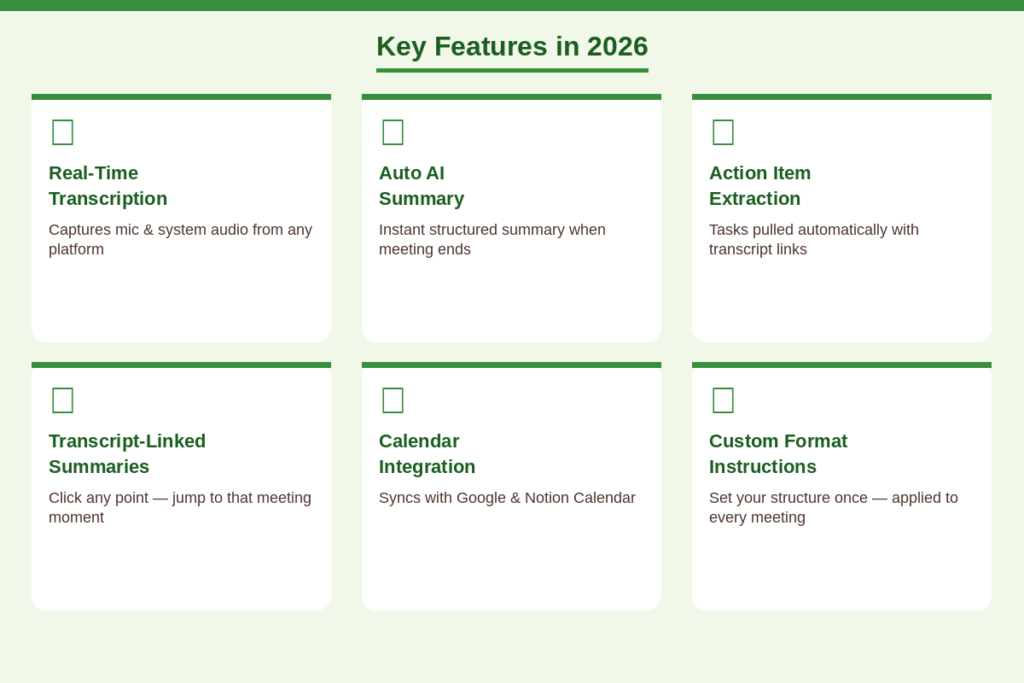
Notion listens to your meeting as it happens and converts speech to text in real time. It is able to record a microphone and/or system audio, so it can be used in a video call, or in a physical room with a laptop playing audio.
Automatic AI Summary
At the end of the meeting, Notion AI provides a clean summary of the meeting. It extracts the key points and summarizes them in an easily skipeable and shareable format. You no longer have to put in time after every meeting to type up notes.
Action Item Extraction
Note Taking AI will identify tasks and commitments mentioned in the meeting and convert them to a separate list. Every item is also referenced to the appropriate section of the transcript so that you can always refer back to a particular task to see the full context of the task.
Transcript-Linked Summaries
The summaries became more powerful by connecting each of the summary points directly to their context in the transcript. Click on any line in the summary, and Notion will jump right to the corresponding place in the conversation. This is great if you need to review a long meeting in a hurry.
Custom Format Instructions
Teams can now specify what they want in the form of meeting notes. Once decided, it’s decided — for instance, decisions, action items, open questions — and all subsequent meetings will proceed in the same way. Consistent note style throughout team members.
Calendar Integration
You can now search on your Google Calendar and Notion Calendar for upcoming meetings and plan accordingly using Notion AI. See the agenda, add context in advance and be ready before the meetings even begin.
Notion AI Meeting Notes vs. Competitors
Here is how Notion AI stacks up against other popular meeting tools:
| Feature | Notion AI | Otter.ai | MS Copilot | tl;dv |
| Auto Summary | ✅ | ✅ | ✅ | ✅ |
| Action Items | ✅ | ✅ | ✅ | ✅ |
| Speaker Labels | ❌ | ✅ | ✅ | ✅ |
| Workspace Integration | ✅ | ❌ | ⚠️ Partial | ❌ |
| Custom Templates | ✅ | ❌ | ❌ | ❌ |
| No Bot Required | ✅ | ❌ | ❌ | ❌ |
| Price (2026) | $20/user/mo | Freemium | M365 add-on | $10/user/mo |
The biggest advantage Notion offers is that everything stays in one place. Your meeting notes, action items, and project databases are all connected inside the same workspace. There is no exporting, no switching apps, and no copy-pasting content from one tool to another.
The main weakness is the lack of speaker identification. Transcripts appear as one continuous block of text without any labels for who said what. If your team needs speaker labels, tools like tl;dv or Fireflies.ai are worth considering as alternatives.
Best Practices for Getting the Most Out of It
Always Review Before Sharing
AI summaries are quite good but not necessarily accurate. Review the auto-generated notes for 2 minutes before sending to team. Ensure Action Items are assigned properly and that key decisions are recorded.
Use Consistent Templates
Create a standard meeting format for most frequently used types of meetings: team standups, client meetings, one-on-one meetings, and project reviews. Structured format helps to find and easily reference past meetings.
Tag People Directly in Action Items
You can mention team members with @ symbol in Notion. Be specific about the person responsible for each action item in the notes (directly). This helps in establishing clear accountability and allows for easy understanding of responsibilities for all.
Connect Notes to Your Project Databases
Notion’s most significant feature is its database feature. Attach meeting notes to the project or client’s database. This makes your meeting archive a useful and dynamic component of your workflow rather than a list of forgotten pages you may have in your workspace.
Archive Regularly
Have a section dedicated to meeting notes for archived meetings. Organize them by month, team, or project. This is a great source of knowledge for new team members to reference and get up to speed quickly.
Pro Tip: Link your Notion Calendar to your upcoming meeting. Conveniently access context and agenda items at a moment’s notice which makes your notes even more applicable from the get go.
Real-World Use Cases
Remote and Hybrid Teams
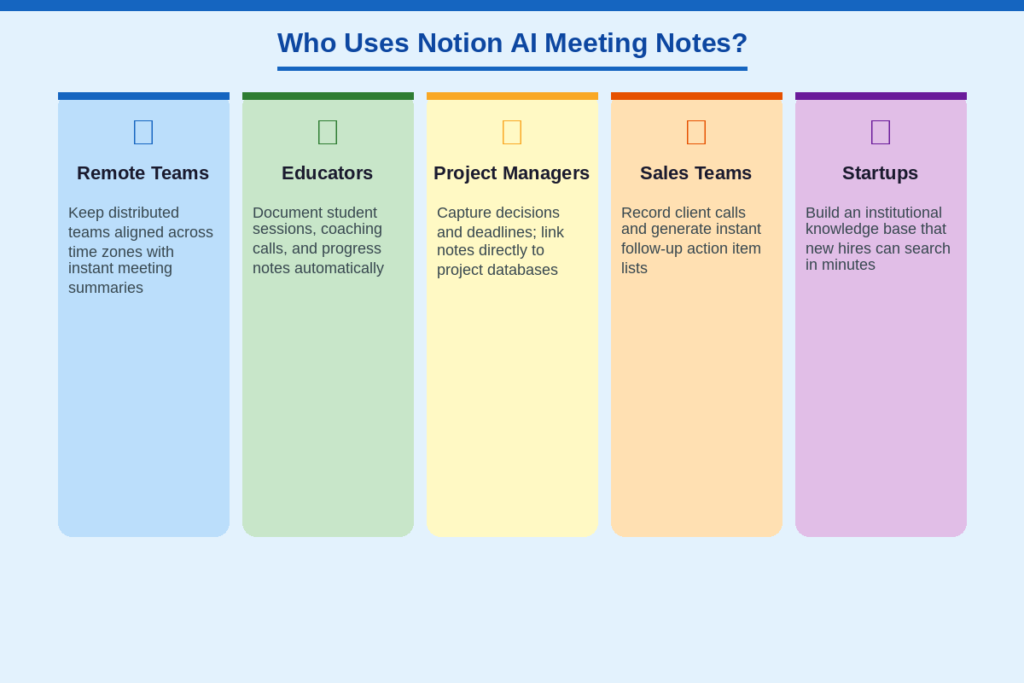
Meeting Notes are essential for distributed teams in different time zones. Those who were not able to participate can review the summary and action items without having to ask others to repeat themselves. Even if schedules don’t align, Notion still ensures everyone is on the same page.
Educators and Coaches
The teachers and coaches can enter the student or client sessions into Notion. A fast recording means that there is a permanent record, searchable record of progress, goals and next steps – without the need to manually write them up after each session.
Project Managers
Decisions and deadlines are made at each project meeting. They get captured automatically by Notion AI and are connected right to the proper project page. Project managers save hours of hours every week with the documentation, and can spend that time working on their project.
Sales Teams
Client Discovery Calls: Sales reps can have the call transcribed to Notion and get a summary of Pain Points, Requirements, and Next Steps. This simplifies record-keeping, and allows it to be done much more quickly and accurately than by hand.
Startups and Growing Teams
When teams are moving at fast speed, important context is lost. With Notion AI’s meeting documentation, an institutional knowledge base is created that expands as the company grows. As the company grows, so does the institutional knowledge base, which is created by documenting each meeting. New employees can easily catch up on previous meetings and get up to speed in hours, not days.
Common Mistakes to Avoid
- Relying on AI without reviewing: Always check notes before sharing with your team
- Not setting up templates in advance: Inconsistent formats make notes hard to search later
- Forgetting to tag people in action items: Unassigned tasks rarely get done
- Using only on desktop: The feature is currently desktop-only and does not work on mobile
- Skipping the archive system: Without proper organization, old notes become impossible to find
Conclusion
This tool provides better documentation of meetings, which makes them smarter. Say goodbye to manual note-taking and hello to a unified, searchable history of all your meetings with Notion AI Meeting Notes. The feature has come a long way, ranging from live transcription to automated action items and calendar integration. If you’re already paying for a Notion Business plan, then there’s no reason not to start using it today. Use it at your next meeting and watch how much time, energy and confusion it saves for everyone.
FAQs
1. Is Notion AI Meeting Notes free to use?
No. It is currently based on the Business plan, which will cost $20 per user per month (billed annually) as of 2026. New users can get a free trial and test out the feature before making a payment for an actual plan.
2. Does Notion AI Meeting Notes work with Zoom and Google Meet?
Yes. It can be used on any platform that generates system audio on your computer, such as Zoom, Google Meet, Microsoft Teams, Slack Huddles and even face-to-face meetings. No bots are added to your call. It takes notes directly from your device.
3. Can Notion AI identify who is speaking in a meeting?
Not yet. As of June 2026, Notion AI Meeting Notes does not support speaker identification. The transcript appears as one continuous block of text with no speaker labels. For teams that need this feature, tl;dv or Fireflies.ai are better options.
4. Can I upload a pre-recorded meeting to Notion for transcription?
No. Currently the feature only works in real time. It cannot process pre-recorded audio or video files. You must start the recording block before or during the meeting for it to capture the content.
5. How do I start recording a meeting in Notion?
Open any page in your Notion workspace, type /meet, and click the meeting block that appears. Confirm consent to record, then click Start. Notion will begin capturing audio immediately. When the meeting ends, click Stop and Notion will automatically generate your transcript, summary, and action items.