Introduction
The typical teacher spends more than 10 hours per week outside of class on lesson planning, grading, parent communications, staff professional development and administrative tasks. That leaves less time for what really matters – engaging with students and great lessons. Notion for teachers is a smarter way to work. A flexible, all-in-one, digital workspace that enables you to plan lessons, monitor students, schedule, and store all your resources in one place. This article will take you step-by-step through how to get it setup and make it work!
Table of Contents
Why Teachers Need a Digital Workspace
The Hidden Cost of Disorganized Planning
There are no teachers who aren’t trying hard. There are not many systems available. The lesson plans are in one folder, attendance are in another spreadsheet, parent notes are in a different app and curriculum maps are in a binder somewhere. All tools are used independently: all tasks take twice the time they should.
If your information is discombobulated, you’re spending time finding information instead of teaching. A teacher with only 20 minutes of additional time each day looking for files will have lost more than 60 hours in a school year. That’s almost a full week of lost work days due to disorganization.
What an Ideal Teacher Workspace Looks Like
The perfect workspace is a unified place where it is all combined. It should enable you to create lesson plans in no time, have student information at your fingertips within just a few seconds, manage grades and deadlines, and work with other teachers without having to switch back and forth between five different tools. Notion does just that — and it evolves to fit your existing workflow.
Getting Started with Notion
Choosing the Right Plan
Notion provides the individual teacher or student at accredited college and university a free Plus Plan. You sign in with your institution email and then you’ll know if you’re eligible. You’ll have 1000 pages, 1000 blocks and 1000 file uploads — enough to start a complete classroom system without paying a dime.
The free plan will help basic needs for K-12 teachers who use a personal email. Notion AI has a $10 per user per month price tag and provides strong automation capabilities if you’re feeling comfortable with the platform.
Understanding the Basics
Notion has three fundamental features: pages, blocks, and databases. A page is similar to a document. A block is anything that is contained within a page (a paragraph, an image, a checklist, a table). A database is a set of pages that can be sorted, filtered and viewed in various ways.
Once you feel comfortable with these three things, you’re off to a great start. It is not necessary to learn it all at once. Begin with one page and expand upon it.
Building Your Teacher Dashboard
Your Home Base Page
Notion’s teacher dashboard is the first screen you’ll encounter when you open up the app. It’s like the headquarters of your command. It should display everything important at a glance, such as: your schedule for the day, upcoming deadlines, recent lesson plans, and quick links to your most-used pages.
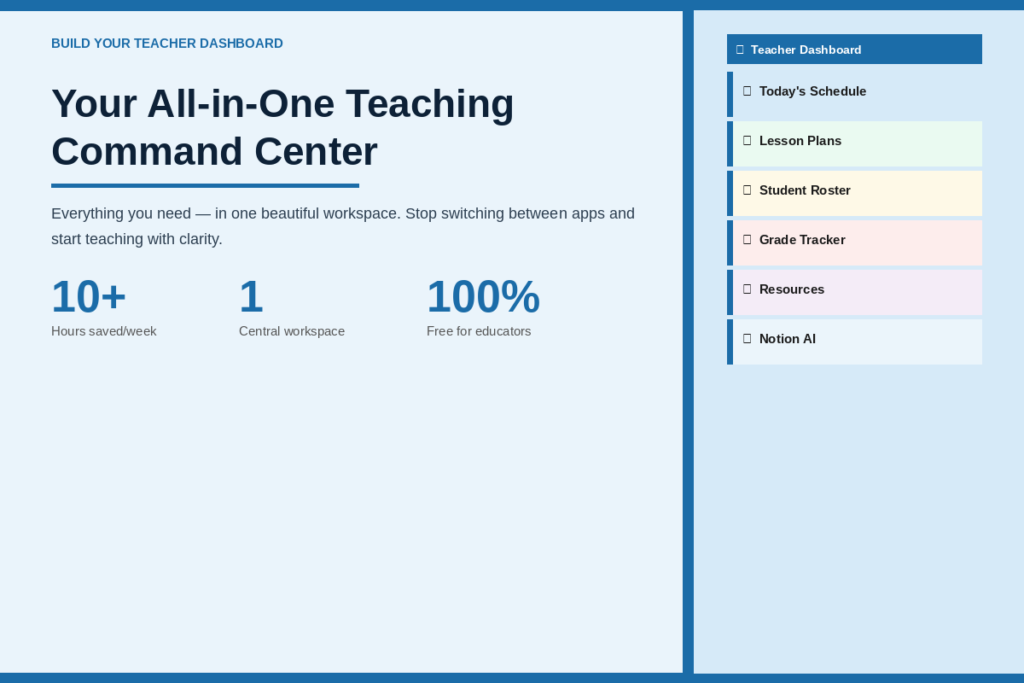
At first, stick to the basics. Include a Today’s Schedule, a linked database of Upcoming Tasks and shortcuts to your major pages such as Lesson Plans, Students and Resources. Additional capacity can also be added as the system expands.
Personalizing Your Workspace
You can add icons, cover images, and color-coded tags to each page on Notion. This may seem superficial, but it actually does help a lot visually to be organized. If you pick a different colour and icon for each subject, you can move around your workspace without reading a word. Saves time and helps avoid mental fatigue in a hectic school day.
Lesson Planning System That Actually Works
Creating a Master Lesson Plan Database
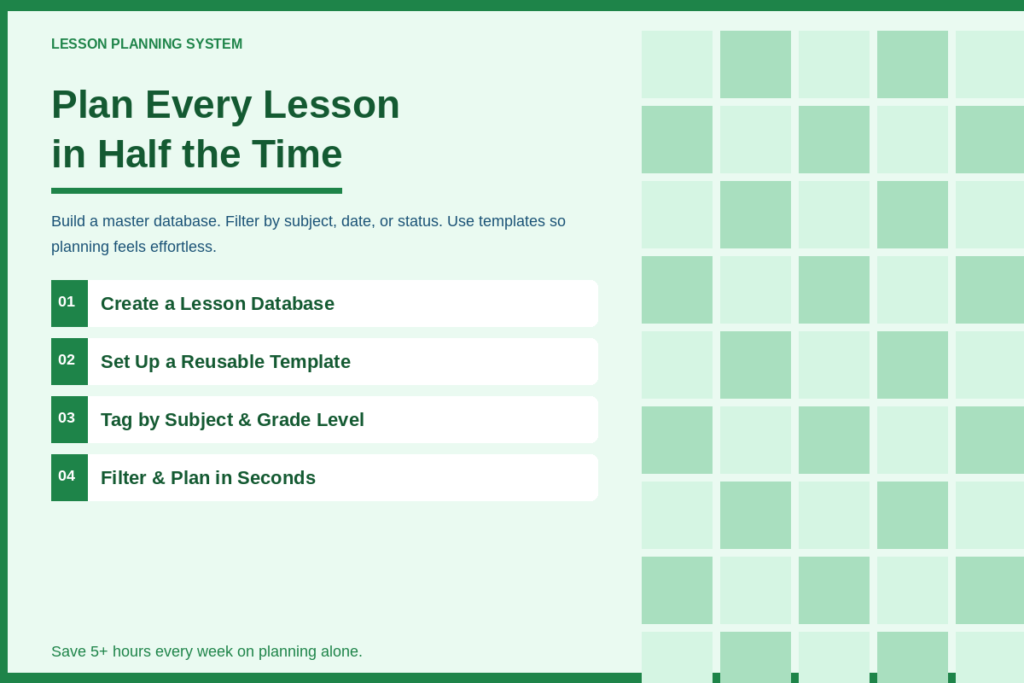
Don’t create a new lesson plan from scratch every time, create one place – a central database – where all plans reside. The following information may be included in each entry: Subject, Grade Level, Learning Objectives, Materials, and a Status Tag (Draft, Ready, or Complete).
This database can then be narrowed down by subject or by date, to discover exactly what is to come. Looking for all of your Mathematics lessons for the next fortnight? One click. Looking for all of your fraction lessons from last year? Quick search and filtering.
Using Templates to Save Hours Every Week
The one of the best features of Notion for teachers is the ability to create and use Notion Templates. You only have to make one lesson plan template — the one that you prefer — with the headings, checklist items, etc., that you want — and then duplicate it each time you write a new lesson plan. Teachers who employ the Ultimate Teacher Planner template are saving hours of their time each week from this one habit alone.
There are also free lesson plan layouts, weekly planners, grade trackers, curriculum maps, and other teacher-specific templates in the Notion Marketplace. They are located in the Templates section of your sidebar, under School.
Student Management Made Simple
Setting Up a Student Roster Database
One of the most valuable Notion docs you can create is a student roster database. Students have their own page within the database. That page is where to keep contact information, notes for attendance, grade summaries, accommodation data and parent communications.
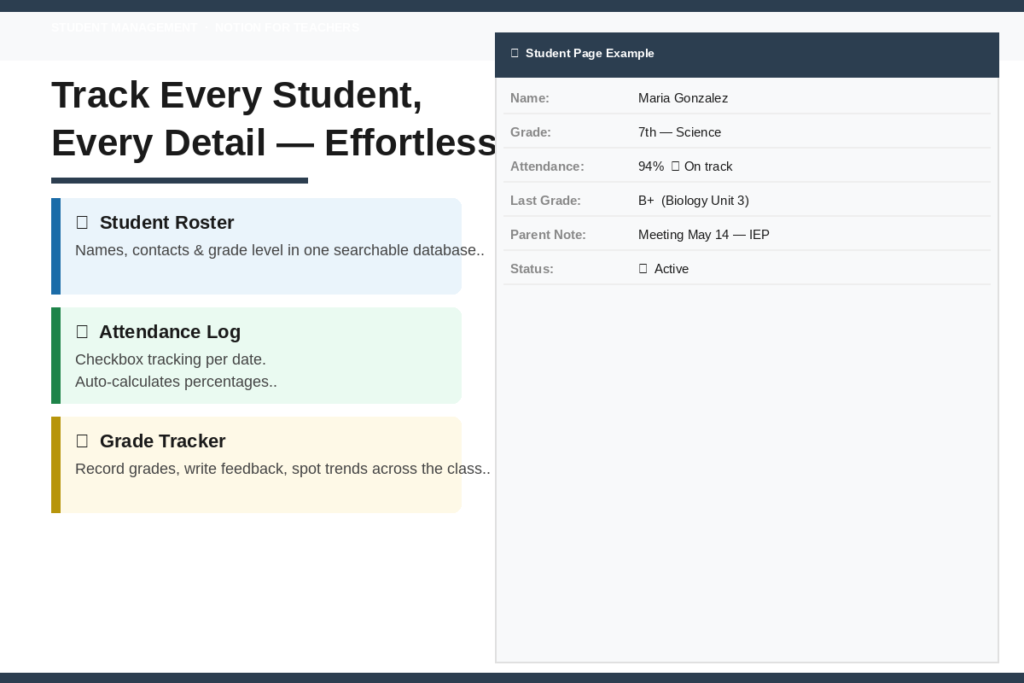
All of a student’s work is kept together. Looking for what you spoke about at the previous parent meeting won’t be a hassle anymore. No longer having to switch back and forth between 3 different apps to check attendance and grades simultaneously.
Tracking Attendance and Participation
Attendance can be logged directly within Notion, via a simple table or checklist. Create columns for each date and check if present or not. Formula fields can automatically calculate attendance percentages in Notion so you can see the overview without any manual calculations.
Make a separate page on each student’s sheet for participation and behavior notes. No time wasters, just a few notes added at the end of class each time that form a clear and detailed picture, which is very helpful in parent-teacher conferences and end-of-term reports.
Building an Assignment Tracker
Make a database with a record for each assignment. Create columns for assignment name, subject, date of assignment, submission, and grade. You may choose to view this as a table (overview), as a calendar view to view upcoming deadlines, or as a board view to view assignments grouped by status (Not Started, Submitted, Graded).
This eliminates the need to have a separate grading spreadsheet altogether. It’s all connected, searchable, and accessible from any device.
Giving Feedback without the Chaos
You may have individual feedback in a notes section in each assignment entry. With Notion AI, you can even have it give you a brief feedback that it drafts using your short notes about a student’s work. In 2026 teachers report saving a great deal of time using this feature and still providing personalized comments on written reports.
How Notion AI Transforms Your Teaching Workflow
What Notion AI Can Do
Notion’s version 3.0 and 3.2 were significant releases that educators will find very helpful. It has also been enhanced with the addition of autonomous AI Agents capable of creating weekly lesson plans from your curriculum standards, recommending activities and differentiating strategies, and even automatically updating shared project boards. Early adopters have saved more than 5 hours a week by only lesson planning.
Notion AI can also transcribe and summarize meetings, at any moment, including meetings with parents, teachers, as well as staff meetings. Notion AI can also transcribe and summarize meetings — even parent-teacher conferences or staff briefings — and create action items right away. The meeting is captured on mobile, and Notion takes care of the rest.
AI-Powered Grade Analysis
Upload a CSV of your grade data and Notion AI creates a visual dashboard showing individual and class-wide progress. It draws students’ attention to those students who might require additional support and identifies trends by subject. This sort of insight was once manually created in a spreadsheet for hours. Now, it takes minute(s).
The context remains the same across your workspace, and you can use multiple models, such as Claude for analysis and Gemini for research, with Notion AI. You can select either the one you want or the one that matches the task.
Collaborating with Colleagues
Sharing Your Workspace with Co-Teachers
Collaboration is easy with Notion. Any page or database can be shared with another person by adding them as a member or sharing a link with specific permissions. A co-teacher may have full edit privileges and a department head may only have view privileges.
It is also possible to create a shared department resource library where plans, worksheets and ideas are shared by everyone. No more sending files back and forth by e-mail or getting lost on who has the most up-to-date version of a document.
Running Better Staff Meetings
Have a common page for each staff and/or department meeting. Have an agenda before the meeting, make notes throughout the meeting, and give action items with deadlines after the meeting. The decision made is visible to everyone and who did what — no further follow up e-mail required.
Using Notion with Your Students
Creating a Student-Facing Portal
You can also use Notion to create a Student Portal, a public-facing page that students can use without needing to sign up for a Notion account, to access assignments, rubrics, class notes, and resources. This is like Google Classroom for content delivery.
The link to the portal can be provided to the students and parents. Any changes you make to the portal will be seen right away. This is great for distributing the weekly agenda, reading lists and project briefs.
Project-Based Learning in Notion
If it’s a longer project, provide each student group with their own Notion page. They can use it to organize their work, to store research, write drafts and record progress. The teacher has the flexibility of viewing each group’s page at any time to see how the group is doing without having to conduct a formal check in.
Common Mistakes to Avoid
Overcomplicating Your System
The biggest pitfall that most people fall into when they are first using Notion is attempting to create too much before they have a grasp of the fundamentals. It can be easy to make an attempt to duplicate all the systems you’ve used in one go. Resist that urge. First, create 3 pages: Dashboard, Lesson Plan database, Student Roster. Once you’ve gotten into the habit, build up from there on.
Trying to Move Everything at Once
Don’t want to move 5 years of files and notes into Notion in one weekend. Choose one aspect of your work, typically lesson planning, and work on it for 2-3 weeks. When it seems comfortable, attach the next piece.
- Start small — one database is better than ten half-built ones
- Use existing templates instead of building from scratch
- Check the mobile app daily to build the habit
- Review and simplify your setup at the end of each term
Time-Saving Tips Every Teacher Should Know
Keyboard Shortcuts and Quick Entry
As soon as you know them, you’ll notice that Notion has keyboard shortcuts which will help you speed things up. When you press the forward slash key you’ll see a menu of commands with which you can add any block type without using a mouse. The @ today tag will insert the current date. The little bits of time can really add up over the course of a school year.
Recurring Templates for Weekly Routines
Create a weekly template to fill in your planning grid every Monday. You have your headings, checklist items and linked databases. You don’t have to do anything except add the content. Those teachers who follow this workflow consistently have reported a third of their planning time reduction after the first month.
Conclusion
There will never be a time when teaching is not creative, empathetic, and human – an app can’t do it. Yet, the burden of administration which hobbles teacher efficiency is a problem that can be alleviated. Creating a well-organized digital workspace gives you the time and clarity to do what you do best. Notion for teachers provides a flexible, powerful backbone that scales to meet your needs, whether you’re just getting going or revamping an existing system that’s gone astray. Begin on one page this week. It’s like you never had it in your life.
FAQs
1. Is Notion free for teachers?
Yes. Individual teachers at accredited colleges and universities can get the Notion Plus Plan for free by signing in with their institution email. K-12 teachers can use the free plan which includes unlimited pages and blocks — more than enough for classroom management.
2. Can students use Notion without creating an account?
Yes. Teachers can share public pages or Student Portals that anyone can view without signing up. Students who want to contribute or submit work will need a free account, but viewing shared content requires no login at all.
3. How long does it take to set up Notion as a teacher?
A basic teacher setup — dashboard, lesson plan database, and student roster — can be ready in a weekend using free templates. Most teachers feel comfortable with their workflow within two to three weeks of daily use.
4. Does Notion work on mobile devices?
Yes. Notion has apps for both iOS and Android that sync in real time with your desktop workspace. The mobile app is useful for logging attendance, checking today’s schedule, and taking quick notes during or after class.
5. What is the best Notion template for teachers?
The Ultimate Teacher Planner from Notion4Teachers is widely considered the most comprehensive option. It includes lesson planning, student tracking, grade management, and a task manager in one workspace. Free templates are also available directly inside Notion under the School category in the Templates sidebar.