Introduction
Being a teacher is one of the most fulfilling professions in the world, but it also has a lot of paperwork, planning and marking to do. It takes a lot of teachers hours outside of the classroom to prepare for the next day. This is where AI solutions such as Brisk Teaching can help. Learning how to use Brisk Teaching will save you hours every week! It integrates seamlessly with familiar apps such as Google Docs, YouTube, and PDFs. No complex setup. No steep learning curve. Simple, intelligent AI assistance, tailored for teachers.
Table of Contents
What is Brisk teaching?
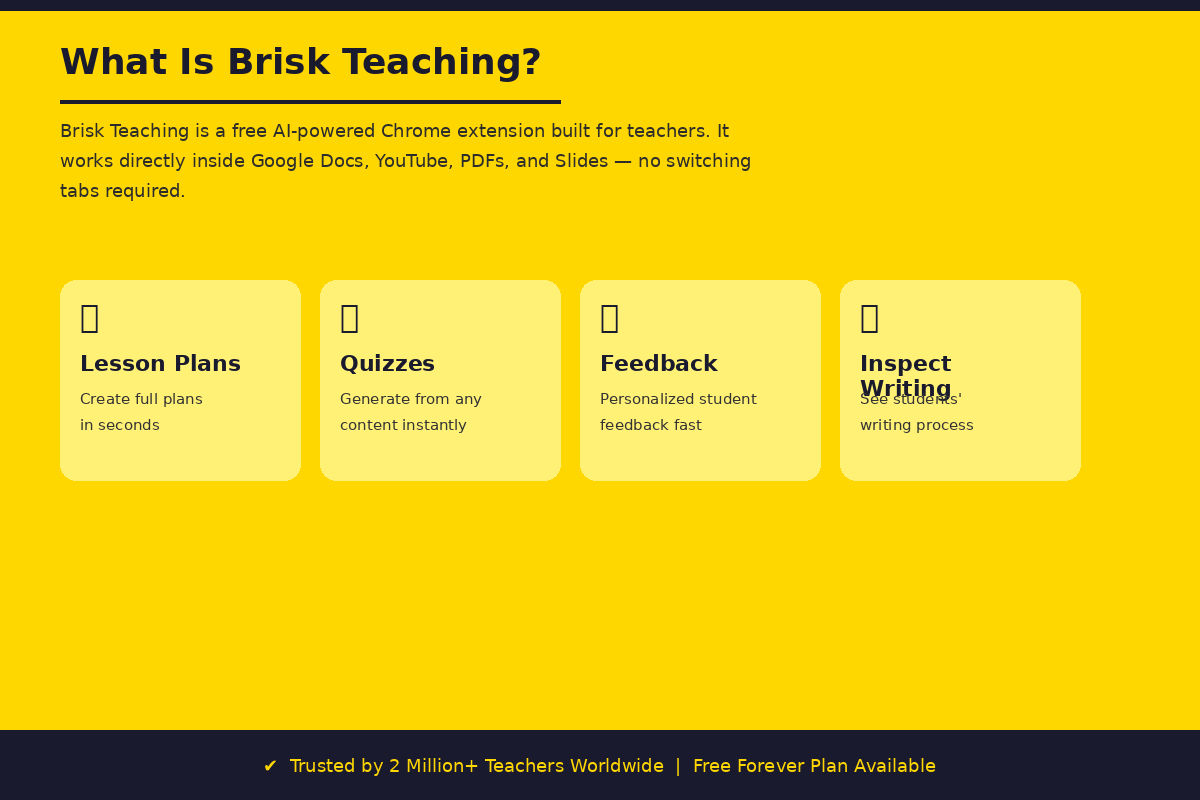
Brisk Teaching is an AI-powered, free chrome extension designed specifically for teachers. It integrates safe AI directly into your tools, including Google Docs, Google Slides, YouTube videos and web articles. Brisk can come to your work, rather than you having to copy and paste content into another AI platform.
Trusted by over 2 million teachers, Brisk is the leading AI-powered tool designed specifically for educators, helping them get more done in less time. Not a typical AI chatbot. It has been designed with the classroom in mind, and is therefore much more practical for everyday use in the classroom.
How Is It Different from Other AI Tools?
With most AI tools, you have to open a new tab and paste your document and then copy the output back. Brisk jumps over all of that. It works seamlessly within Google docs and has a “Brisk It” button which saves huge amounts of time. It all takes place in one location—this is a time saver in a busy school day.
Why Should Teachers Use Brisk Teaching?
It’s important to get some context on why so many teachers are making a switch to Brisk in 2026 before diving in with the steps.
It Saves You Hours Every Week
Brisk provides high-quality, personalized feedback for students in seconds rather than hours. What typically used to be a chore on your night such as writing comments, adjusting reading levels, making quizzes, etc. now takes a few clicks. This will give your students more time and less screen time
It Works with Tools You Already Know
No need to learn a whole new platform. Brisk operates within the applications that you are already using, such as online textbooks, Docs, images, PDFs, and more. As it doesn’t require the learning of a new application, it’s quick and easy to get going.
It Is Free for Every Teacher
The Educator Free tier will feature 20+ AI tools, Chrome & Edge extension, generation in 50+ languages, standard language models, unlimited usage, and the core feedback tools. It’s quite generous, free plan, no credit card, no budget approval with your school.
Step 1 — Install the Brisk Teaching Chrome Extension
It takes less than 5 minutes to get started with Brisk. This is how you should do it.
Log on to Chrome Web Store from your laptop, desktop, or Chromebook. Look up “Brisk Teaching” or visit briskteaching.com to click on the download link on the home page. Click “Add to Chrome” and then on “Add Extension. After installing, you will find the Brisk icon in your browser’s toolbar.
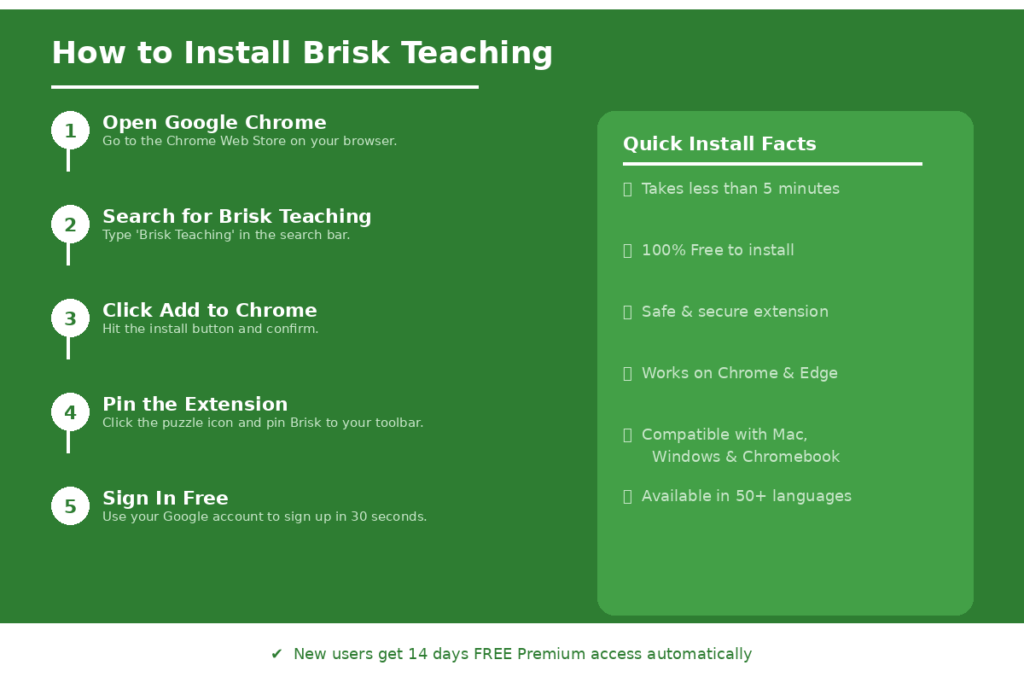
Click on the extensions icon in your browser toolbar (it looks like a puzzle piece). A drop down extensions menu will appear. Click on Brisk Teaching on the map. Brisk Teaching should now appear in your toolbar!
Does It Work on Other Browsers?
Brisk Teaching works with Chrome, Edge, and Safari. It is available on Windows Laptops/Desktops, Mac Laptops/Desktops, Chromebook Laptops/Desktops, iPad and Android Tablets. Currently Brisk Teaching does not have a mobile application but is mobile-friendly.
Step 2 — Create Your Free Account
After installing the extension, click Brisk icon in your toolbar. You will be asked to register. The quickest way to sign in is by signing in with your Google account (it only takes around 30 seconds).
New users will get 14 days of free Brisk Premium upon signing up. You will automatically upgrade from the Free Forever Plan after 14 days, and continue to use more than 20 essential Brisk tools for free. That is, you can experience all of the premium features before making a decision on upgrading.
Once signed in, spend some time familiarizing yourself with the dashboard. Is very neat and user-friendly. Options to Create, Give Feedback, Change Level, Inspect Writing and more will be available at the click of a single button.
Step 3 — Create a Lesson Plan in Seconds
This is one of the most common features for the beginners. Open Google Doc in a new tab in Chrome browser. You will see the Brisk icon in the corner of your screen, click on it to open the menu. Click on “Create” and then “Lesson Plan”.
Just go to a blank Google Doc and request Brisk to “create a lesson plan template. You’ll have a template ready to print in seconds for every level and every subject. It can be customized prior to generation, entering one’s subject, grade level, learning objectives, and time.
Brisk will create a complete lesson plan in seconds. You can then make edits directly in your Google Doc, make changes to the structure and save it to your Google Drive with a click of a button. Say goodbye to the blank page.
Step 4 — Generate Quizzes and Assessments
Building quizzes from the ground up is a lengthy process. Brisk will make it easy. Open any document, article, YouTube video or PDF in your browser. Click on Brisk icon and select “Create” and then choose “Quiz”.
Teachers can now design curriculum aligned quizzes in Brisk and have them appear in their connected accounts for easy assignment. The question format can be multiple choice, short answer or true/false, and the grade level can be selected to ensure it is age-appropriate.
This is a great feature for YouTube videos. Brisk can convert a video into a comprehension quiz in less than a minute, if you are showing a video in class. Pupils remain engaged and you have an assessment that is there for you to use.
Step 5 — Give AI-Powered Feedback on Student Work
Providing relevant feedback to all students is one of the most challenging components of teaching. Brisk does this a lot more easily. Open a student’s writing assignment in Google Docs. Tap on the Brisk icon and then “Give Feedback.
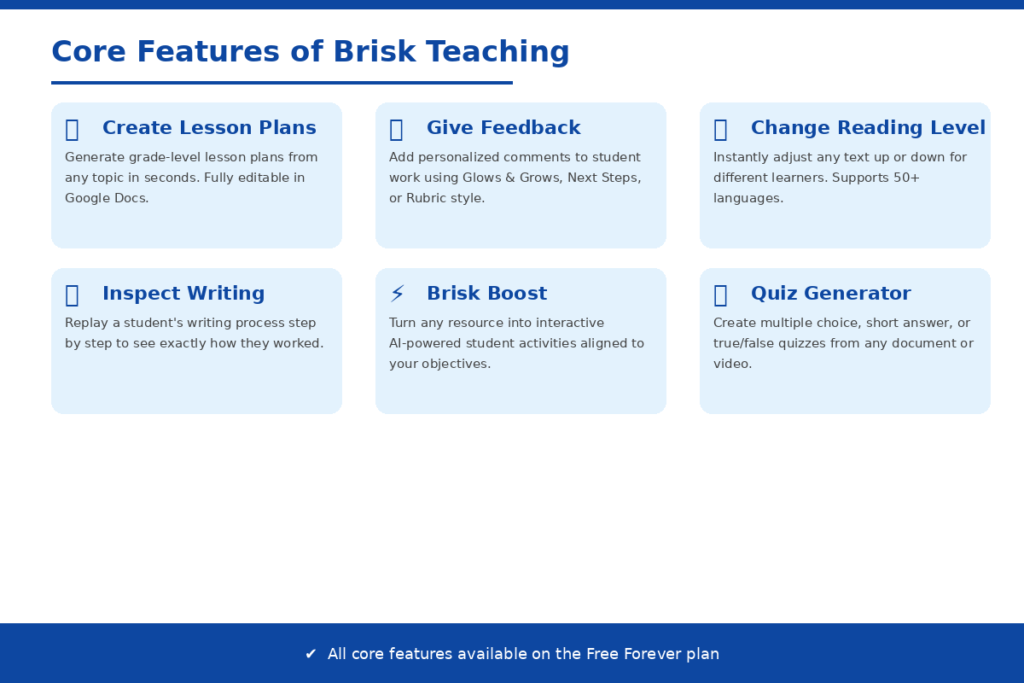
Premium plans have even more features, such as a Targeted Feedback Generator that leaves comments on students’ Google Docs. Feedback can be of the following types: Glows and Grows, Next Steps and Rubric Criteria based on what your students need the most.
There are 4 types of feedback to choose from: Glows & Grows, Next Steps, Rubric Criteria or limited Rubric Scoring. Just upload your students’ work, select the appropriate standards and grade level, and Brisk will help you provide focused, consistent feedback in a timely manner. Batch Feedback also lets you grade several student responses simultaneously, which is an absolute lifesaver when you’re grading!
Step 6 — Adjust Reading Levels for Every Student
Brisk’s awesome feature is that it can distinguish content immediately. All students don’t read at the same level, and making multiple versions of the same document used to take hours. Now it only takes seconds.
Open any article in PDF or any document in Chrome. Tap on the Brisk icon and then choose “Change Level. Brisk automatically scales any piece of text to support differentiation simply and instantaneously. Levels can be varied to accommodate students in your class.
Choose the grade level (or select one of 50+ languages if you need a translation). Next, check the revised text for appropriateness of the text for your learners. This is particularly helpful for English language learners and students with varying levels of reading proficiency.
Step 7 — Use Inspect Writing to Understand Student Work
Brisk has a distinctive feature, Inspect Writing, that many teachers find very useful. It allows you to view a student’s assignment, step by step, and know if it is the student’s own or not.
The “Inspect Writing” feature displays the student’s writing process. Can replay changes as if on a playback reel, and view all the changes made—when they were added, deleted, or pasted. This will allow you to discuss with students their work in an honest and evidence-based manner rather than making accusations.
It can also be used to monitor progress through time. It’s possible to observe if a student is improving their writing skills and give targeted coaching, as opposed to simply stating that they need to do more.
Step 8 — Explore Brisk Boost Activities
Brisk Boost will enable you to make your student activities interactive, right from your existing content. Open a resource such as a YouTube video, article or Google Doc. Tap the Brisk icon, and tap “Boost.
Brisk Boost aims to develop safe, interactive AI-powered activities and activities that correspond to learning objectives and encourages students to engage deeper with the learning material. Discussion questions, reflection prompts, vocabulary activities and more can all be created that align to your existing curriculum.
This is a wonderful way of enriching your lessons without having to invest additional planning time. Students receive activities that are fun and you get some extra time in your day.
What Is New in Brisk Teaching?
Brisk has been growing fast. In 2026, the platform has introduced some exciting updates worth knowing about.
Curriculum Intelligence
Brisk is creating Curriculum Intelligence, intelligence that already understands your standards, your scope and sequence, your materials, and is right where teaching happens. This translates to less editing, less fiddling, and less time spent adapting your pacing guide to AI’s output. This functionality will be available for Back to School 2026 and will be significant growth for district level users.
District Admin Dashboard
School and district administrators now have a single, data-rich perspective of Brisk usage across the school every night, thanks to the newly launched Teacher Reports.With the addition of Teacher Reports, school and district administrators will have a single, data-rich view of Brisk usage for all teachers in their school, updated nightly. Create, Give Feedback, Batch Feedback, Change Level, Inspect, Boost Activities, and Boost Feedback are discussed in detail, feature-by-feature. This facilitates monitoring of adoption and impact for school leaders.
Brisk Teaching Free vs. Pro Plan
| Feature | Free Forever | Premium/Pro |
| AI Tools | 20+ | 35+ |
| Languages | 50+ | 50+ |
| Feedback Tools | Core (Glows & Grows, Next Steps) | Targeted + Rubric Scoring |
| Batch Feedback | Limited | Full Access |
| Curriculum Alignment | Basic | Full Curriculum Intelligence |
| Admin Dashboard | No | Yes |
| Cost | Free | School/District Pricing |
For an individual teacher, the Free Forever tier is generous enough to use without a budget conversation. If your day is built around Google Docs, Slides, Forms, Classroom, Microsoft Word, or PowerPoint — yes, comfortably, on the Free tier alone.
Tips for Getting the Best Results from Brisk
There are some simple practices that will help you produce high-quality results with Brisk.
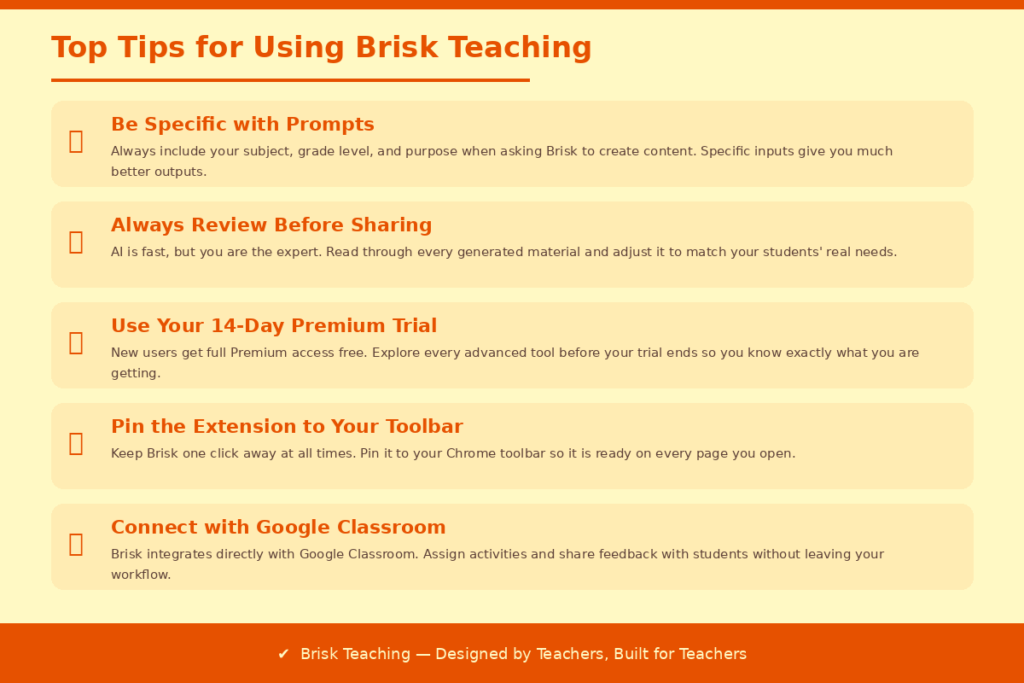
Be specific when giving instructions. You do not need to ask Brisk to “create a quiz,” just specify the topic, grade level, number of questions, and difficulty. The more information, the better.
Please check before sharing with students. While AI is quick, you are the expert. Go through material created and adapt to your teaching style and your students’ needs. Brisk is a beginning, not an end.
Do one feature at a time. It can be overwhelming to use all of the tools at once. Start with planning/feedback, then get comfortable and explore the rest.
Utilize with Google Classroom. Brisk seamlessly integrates with Google Classroom, making it simple to create activities and provide feedback directly to your students.
Common Mistakes Beginners Should Avoid
A simple tool such as Brisk can be a snare for new users. These are the pitfalls to avoid from the get-go.
Be sure to take advantage of the 14-day Premium trial. For most people who are new to it, they don’t bother with the trial and opt for the free tools immediately. On the trial, you will get all the advanced options and features and you can use it in order to explore them all before the trial ends.
Avoid general questions. If you type in ‘make something for my class’, you will get a generic answer. Use subject, grade and purpose for best output.
Remember to pin the extension! If Brisk isn’t in your toolbar, you will always be looking for it. Pin it once and it’s available on all pages.
Conclusion
Brisk Teaching is among the most utilitarian AI tools for teachers today. It will save you hours each week, will work where you are already, and has a almost no learning curve to get started. If you are new to AI or simply seeking a more efficient approach to lesson planning and feedback, understanding how to leverage Brisk Teaching will truly revolutionize the way you work every day. 2 million+ teachers are already using it, plus new features like Curriculum Intelligence are coming in 2026 – what better time to try it out? Install the extension today, Save time tomorrow!
FAQs
Q1. Is Brisk Teaching really free?
Yes. According to briskteaching.com/plans, the Educator Free tier is Free Forever and has 20+ AI tools, the Chrome and Edge extension, generation in 50+ languages, and unlimited use. There is no need to have credit card.
Q2. Does Brisk Teaching respect student privacy?
Yes. Brisk Teaching has undergone advanced scanning by top security software and verified by industry-leading partners, and is free from viruses, malware, spyware and similar threats. The platform has been designed keeping in mind the privacy of the educator.
Q3. Will Brisk Teaching run without Google Chrome?
Mostly yes. Brisk Teaching is compatible with Chrome, Edge and Safari browsers. The Chrome extension, however, has the best and most complete experience.
Q4. Which subjects can Brisk Teaching help with?
All of them. Brisk Teaching is used in every grade level from elementary to university level, and provides classroom-ready examples for all subject areas. It will work with any material you feed it.
Q5. What makes Brisk Teaching unique from ChatGPT for educators?
ChatGPT is an all-purpose AI model that operates on its own platform. Brisk Teaching is a Chrome extension that integrates safe AI into the tools you already know and use, like Google Docs, Google Slides, YouTube videos and web articles – without any tab changes or copy-paste.