Introduction
The best way to study smarter than studying harder, is using the right tools, and the Quizlet study guide maker has been one of the most sought after tools for students and teachers alike to convert raw notes into a study guide ready for exams. Say goodbye to tedious hand typing of pages of lecture notes or textbook chapters and hello to quickly generating outlines, flashcards, and practice tests using AI. This article takes you step by step through just how this tool functions, how to create your initial study set, and the smartest ways you can utilize the features to retain more information and spend less time formatting.
Table of Contents
What Is This Quizlet Feature?
The Quizlet study guide feature harnesses AI to analyze your notes, slides, or PDFs and create a structured study guide for you automatically. The tool starts from a blank page, instead, it extracts key concepts and presents them in sections that you can review, edit, or add more information to. You can create flashcards, summaries and even practice quizzes from that one guide without re-typing any information.
It was designed to address a frequent student issue – spending more time formatting notes than learning from them. The tool replaces the busy work, leaving more time to repeat, practice, that is the part which improves grades.
Quizlet has evolved the way content reaches the door. The platform now supports handwritten notes, lecture slides, Coconote’s audio and video recordings, as well as plain text, thanks to its acquisition of Coconote. That is a slick way to convert a pile of whiteboard notes that were photographed into the same organized presentation as a typed paper, as opposed to the humble flashcard Quizlet began with.
Key Features at a Glance
Some of the essential functions of the core are note-to-outline conversion, AI-generated flashcards, an AI test maker, and editing features to highlight or shuffle parts. Also recently, Quizlet acquired Coconote, an AI service for taking notes from audio and video files that can then be turned into quizzes and flash cards; this is a nice addition if you record your lectures rather than take notes.
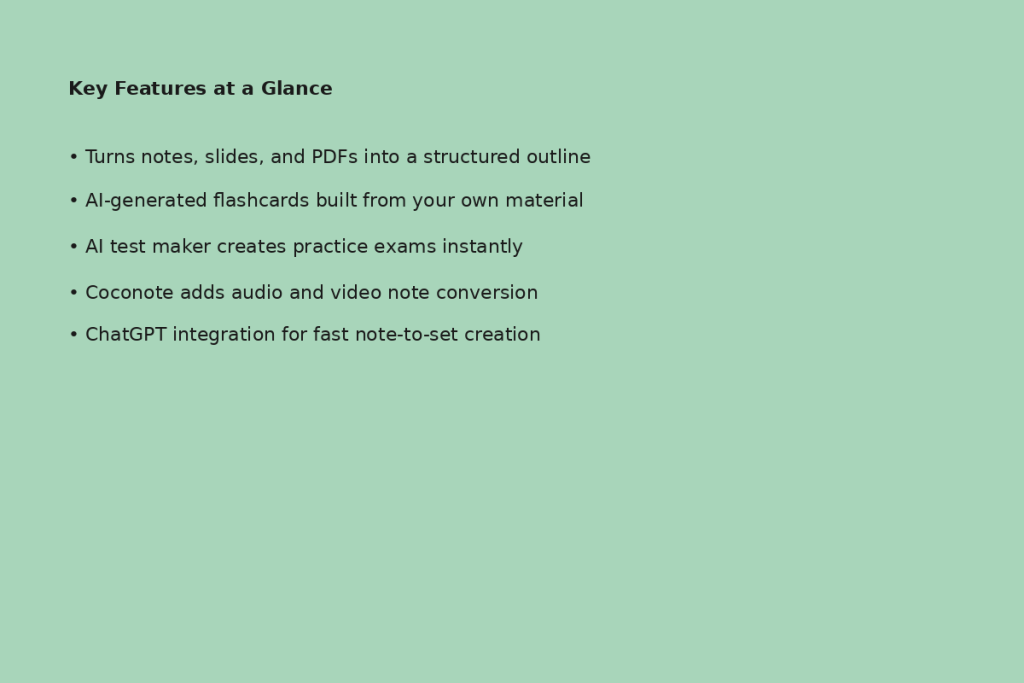
Quizlet also has a ChatGPT integration, enabling students to skip between apps and transfer a completed study set from a chat with ChatGPT or a document they uploaded. The objective of all these additions is the same: reduce the tools that the student has to work with while taking notes and when reviewing his/her notes.
Who Can Benefit From It
It is used by students for last-minute study, teachers for developing course contents, and even for self-study by professionals for certifications. In particular, teachers can take their lesson slides and save them as a ready-made practice set for an entire class in a matter of minutes.
Often, when preparing for a licensing exam or a job skill test, professionals use the same processes as with the training manual or as part of an induction process, rather than their lecture notes. The process remains the same across subjects: Input content, allow AI to structure it, then quiz yourself with flashcards or a quiz until the material is memorized.
Getting Started with the Tool
Creating a Free Account
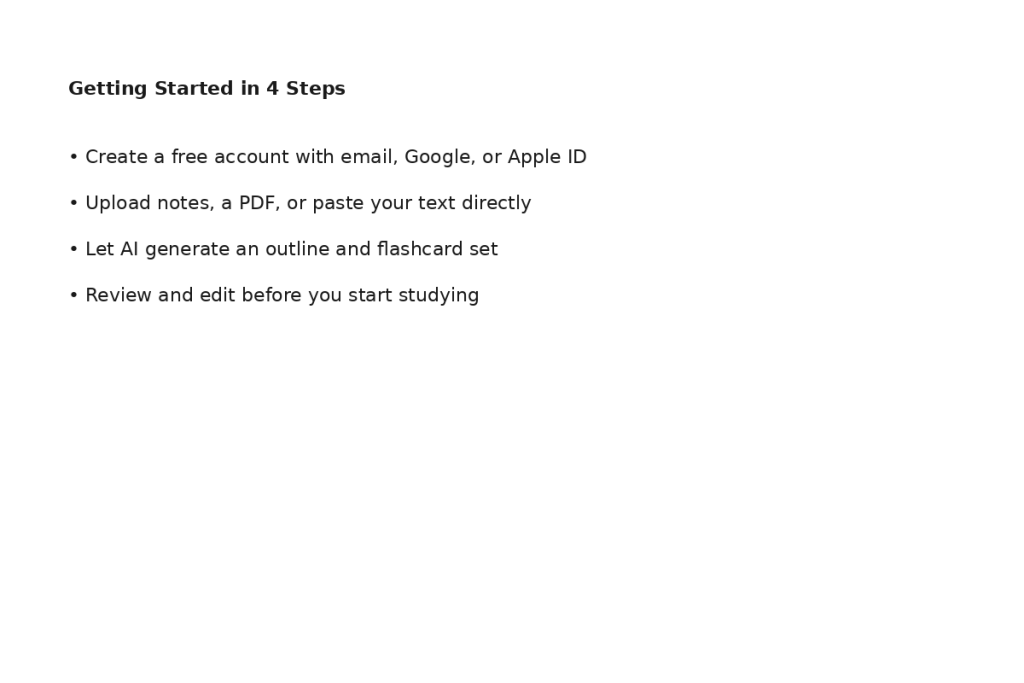
Registration can be done via email, Google or Apple ID and the basic version is free. Quizlet Plus subscribers get unlimited study guide generation, while the free version still allows you to access some of the more advanced features of Quizlet, so you can try out the tool before upgrading.
Navigating the Dashboard
After logging in, you have a Dashboard on which you can see the recent sets, folders, and you can create something new. The design is straightforward: There are clearly defined ways to begin a flashcard set, create a study guide, and dive into a teacher-provided class folder.
There’s also a search feature at the top of the page to easily access millions of publicly shared sets made by other students and teachers. If you’re about to create a set from scratch, you might want to check before you start, because a set on a subject that has already been created, such as a Spanish vocabulary set or a set of AP Biology notes, might be available and could save you the time of setting it up.
How to Build Your First Study Set
Adding Terms and Definitions
The simplest method for creating a set is to type in words and their definitions sequentially. It’s good for small lists of words or certain facts you know you must memorize, and it allows you to be completely in control of the wording.
Importing Content from Notes or Documents
If the material is longer, you can paste in text, upload a Word document or PDF, or link to your Google Drive with it. The AI scans the text and extracts key points and creates a logical structure that you can adjust later.
Using AI to Auto-Generate Study Sets
After uploading your notes, you’ll get an outline, a set of matching flashcards, and sometimes a quiz, all from your own notes—not from generic web content. The quickest route from lecture notes to something you can read, from second to hours.
It’s good to look over the outline that is generated before beginning to study from it. The AI can identify important terms and definitions, but sometimes it can also include unrelated concepts or fail to capture the context, which you might only be aware of from being present during the lecture. It typically takes only a couple minutes to correct this with a quick read through and a few manual corrections.
Smart Features That Improve Studying
Flashcards Mode
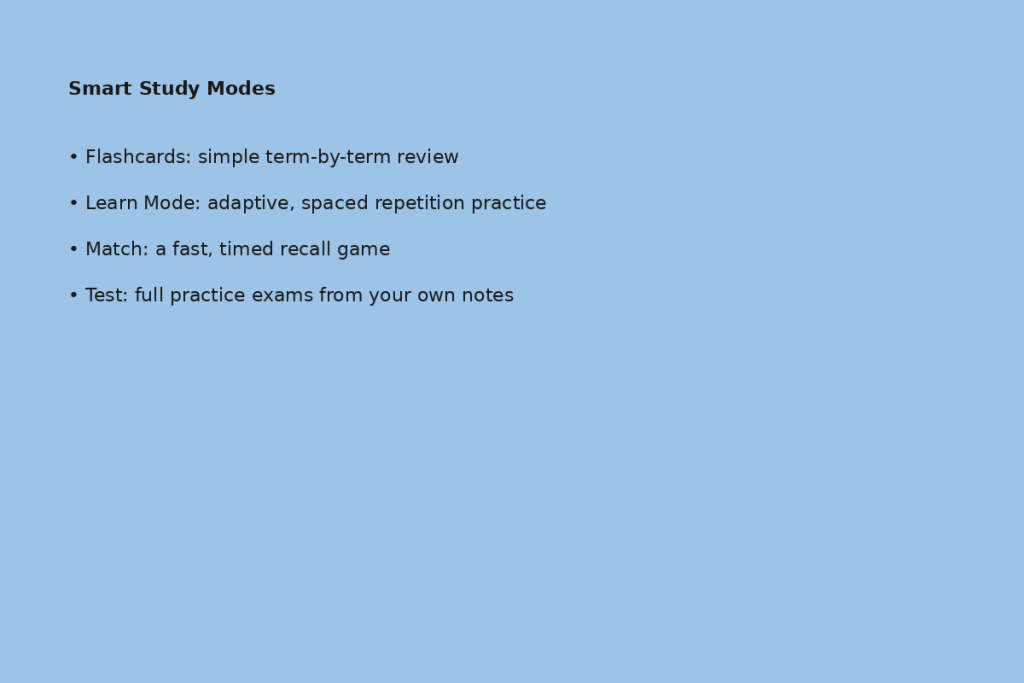
Flashcards are still the easiest study mode, and they allow you to flip through the terms at your own speed. You can shuffle them in any order you want, star difficult cards to review later, and choose to review either the term or the definition for what you are attempting to memorize
Learn Mode and Adaptive Practice
Learn mode “teaches” yourself with cards that you’re having trouble more often, and gets easier with the ones you’ve mastered. This technique is one of the most studied methods to help transfer information into long-term memory instead of short-term recognition memory.
Match and Test Modes for Active Recall
Match mode transforms review into a time-based game, perfect for a quick daily review. Test mode creates a formal practice test with multiple-choice or written questions from your own study set and provides you with a true feel for how the real exam will be.
Practice tests can also be customized to their desired length and difficulty, and feedback is provided after the test to identify those areas that require more attention. One of the best ways to identify weak areas is to run through a practice test a day or two before the actual test, so you can still work out the kinks if necessary.
Customizing Your Study Guide for Better Results
Adding Images and Audio
For some subjects such as anatomy or geography, visual learners can draw diagrams, charts or take photos of anything and stick them on the flash cards. In language classes, there is also audio support to help with pronunciation practice, allowing you to listen to a term correctly before attempting to recall it.
Organizing Sets into Folders and Classes
Folders contain related material and are organized by subject or semester as sets accumulate. Students can have a class folder assigned at the same time which can be used to assign sets to each student and prevent having to search through multiple folders to find them.
Sharing Study Sets with Classmates or Students
Each set is accessible with a easy link, simplifying group study even more. In the case of a course that is highly popular, students also can find sets that have already been constructed by other students in the public library, thereby saving time.
Several classmates can add terms to the same class set for Group Projects rather than everyone constructing individual copies. The benefit of this is particularly noticeable when used in study groups where everyone is studying the same final exam – making a single booklet of everyone’s notes will often include a point that would not have been covered by any single book.
Tips for Creating Smarter Study Sets
Chunking Information Effectively
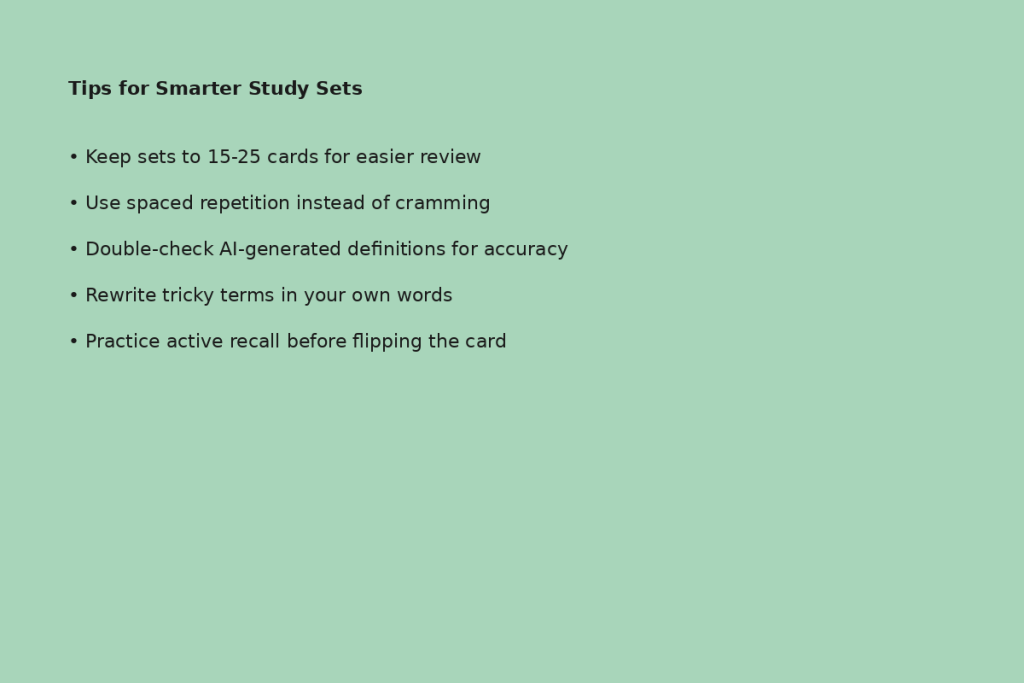
Divide a large subject into multiple groups, of 15-25 cards, rather than a single giant list. Smaller sections allow your brain to take in more information during one session and keep it more easily in mind of what you’ve already learned.
If a chapter or unit breaks up into sub-topics, create a separate set for each one, don’t try to jam into one long one. This also helps you to know exactly which difficulty is troubling you and not feeling like you are not prepared for the entire chapter.
Using Spaced Repetition
Instead of all-in-one review sessions the night before a test, review sets in short snippets over a period of several days. It will be much more effective for retention to have old cards resurface in the Learner Mode with increasing intervals between them than to read a list only once and hope it will stick.
Avoiding Common Mistakes
Be careful not to use AI-generated definitions without verification, as they may be incorrect or misleading. Also try to re-word some of the definitions in your own words, as this is a memory trick in itself.
Another typical error is to study a set passively, just scrolling the cards without attempting to remember the answer first. One good way to enhance memory is to try to answer the question before you turn over the card (active recall).
Using the Tool on Mobile vs. Desktop
Feature Differences
In most cases, the desktop version will provide a better experience when uploading documents of any length, and editing large outline sections. The mobile application is more suitable when you want to review a lot, study while you are on the move, or practice your flashcards during short breaks between classes.
Which One Should You Use?
This one is a practical one and involves creating your sets on desktop and then switching to mobile for daily practice. This makes it easy to study anywhere your phone takes you while also providing the editing capabilities of a larger screen.
The mobile app can also be used offline after downloading, which comes in handy when studying in a part of campus with a weak signal or on a flight. Reminders can be given when it’s time for the next scheduled review session, ensuring that spaced repetition is maintained without the need for you to remember.
Conclusion
The most time-consuming part of studying is taking notes and making them organized, and the quizlet study guide maker gives it to AI so you can concentrate on learning. The auto-generated outlines, flashcards and practice tests make quizzing and creating full semester review material much faster and less stressful. Use one chapter or lecture as a starting point, familiarize yourself with the editing features and slowly develop a body of study sets that are smart, exam-ready and work for YOU.
FAQs
Can the user use the study guide for free?
Yes, but with some restrictions. AI Study Guide Generation is only available with Quizlet Plus, which is available through either a subscription or a free trial.
May I upload a pdf or word document to Quizlet?
Yes. You can upload PDF, Word documents, slides or even integrate Google Drive to grab your notes.
Is it possible to get accurate study sets automatically from Quizlet’s AI?
The organization of your own material is usually correct, but before using it for an exam, check out facts and key definitions.
Are teachers able to monitor students’ work with study sets?
Yes. Teacher accounts create sets, and view user set completion and user set performance.
What’s the best way to organize multiple study guides?
Organize folders by subject and/or semester and keep each folder small for easier review and tracking.