Introduction
Organizing projects is among the greatest difficulties for groups and individuals, particularly when you have to keep track of tasks, deadlines, and notes across various applications. Notion project management tool that integrates task boards, timelines and documentation in a single workspace, allowing anyone to keep track of everything through a single place. Whereas rigid systems require you to stick to a specific method, Notion allows you to create a system that suits your working style. This article covers the practical application of that, how to step-by-step set it up, which templates are best, and key steps to ensure your projects keep on running smoothly.
Table of Contents
What Is Notion Project Management?
It’s about leveraging the flexibility of Notion’s building blocks (pages, databases, properties) to plan, track and finish projects. Notion is not just one specific way to work; it provides you with building blocks that you can use to create a task board, timeline or a project centre.
This has given rise to Notion’s rise in popularity among freelancers, startups, and expanding teams. It’s one of the most popular solutions for keeping notes, documentation, and project tracking all in one workspace, with more than 35 million active users. Teams like it because anything from a roadmap to a meeting note is housed in a single connected system.
The structure of Notion is not automatically meant to constitute a project management tool, so you create it from scratch. This is very flexible but a little preparation is required until it is working as desired.
Notion provides a blank canvas, unlike other software like Jira or Microsoft Project that come with pre-defined workflows. It’s this openness that makes it so appealing to so many small teams and individual professionals, as they can track projects and document them, add wikis and notes and then never jump back and forth between apps. The con is a higher learning curve initially, but the flexibility makes up for it for most users.
Key Features That Make Notion Effective for Project Management
Databases and Views
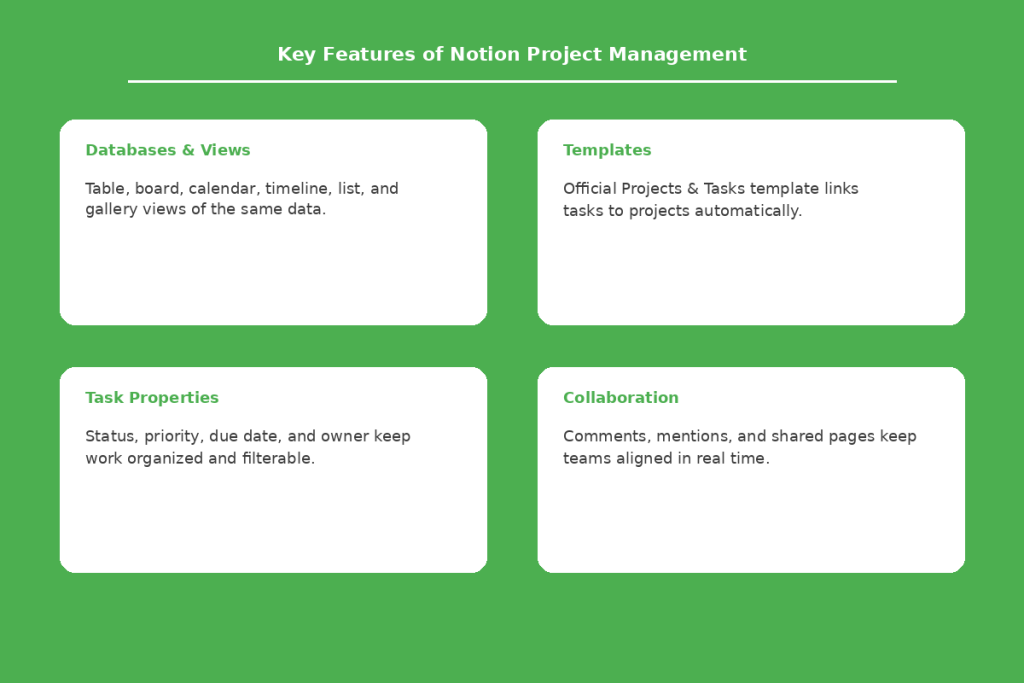
The heart of this method involves databases to store tasks and projects as individual entries. The same database can be displayed as a table, a Kanban board, a calendar, a timeline, a list or a gallery. Switching views will allow members of the team to view the same information but in a different format which makes it easier for them to process.
Templates and Reusable Workflows
Notion also has templates like an official Projects and Tasks template that has its own set of connected databases. Progress is automatically tracked when tasks are completed and each task is associated with a project. This will save a huge amount of time to setup a system from scratch.
Task Properties, Tags, and Filters
Each task can have attached properties including status, priority, due date and assigned owner. Filtering and sorting help you to create specific views that show only tasks for you or those with urgency, so that large projects do not seem overwhelming.
Collaboration and Sharing Tools
Teams can share pages with guests for free on most plans, use @mentions to notify colleagues on a task and comment directly on tasks. Note that there are no built-in chat tools in Notion, but these lightweight collaboration tools keep conversations in the context of the work itself.
Integrations and Automations
To simplify repetitive tasks, such as updating statuses or sending notifications, you can use automations in Notion. It also integrates with other tools, like Slack and Google Drive, which decreases the requirement of regularly changing between applications.
For teams looking to take things one step further, Notion AI can create initial plans for projects, summarize standups, and auto-complete properties in your databases, such as status or next steps. The AI features are most beneficial to the teams that are already subscribers on Notion’s business plan, as full access to AI features is included in the business plan and not offered as an add-on in 2026.
How to Set Up Notion for Project Management
Step 1 – Create Your Project Workspace
First, you need to create a team space or page for your project. This will be the home office for all the associated databases, documents and notes, preventing information from getting spread all over your work surface.
Step 2 – Build a Task Database
Develop a separate database of tasks. Each task turns in to its own page and you can even make really big tasks into sub-tasks for finer-grained tracking. This is similar to how most teams do think about breaking down work.
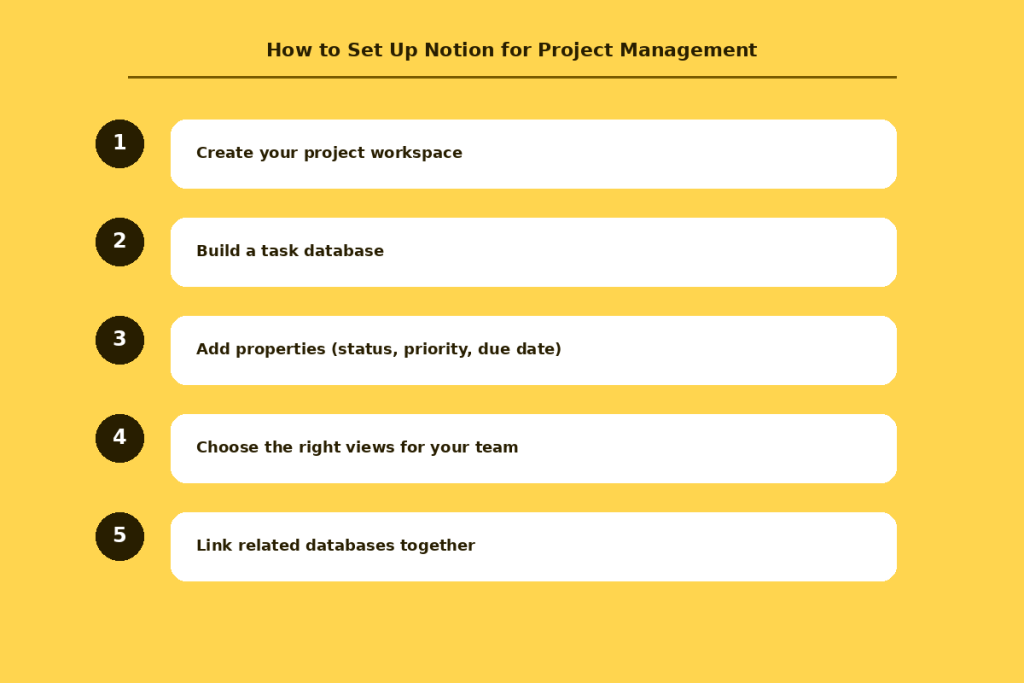
Step 3 – Add Properties
Include attributes such as status, priority, due date, and owner for each task. It is important to think about these properties when they are first added, as they make the task of filtering and sorting later easier.
Step 4 – Choose the Right Views for Your Team
Create a Kanban board for the tracking of phases, a table view for a comprehensive overview and a timeline view for deadline planning. Team members might have different perspectives, and Notion allows them to do so with the same data in their own way.
Step 5 – Link Related Databases
Relate your projects database to your tasks database. This enables a project page to display the number of tasks and progress of a project in real time without having to open each task individually.
Best Notion Templates for Project Management
If constructing from the ground up seems like too much effort, then you can start with one of Notion’s official and community templates. Below are some of the more common types to consider.
- Kanban board templates: Best for visualizing workflow stages and spotting bottlenecks at a glance.
- Gantt-style timeline templates: Useful for projects with multiple dependencies and overlapping deadlines.
- Sprint planner templates: Designed for engineering and product teams running agile workflows.
- OKR tracker templates: Helpful for connecting daily tasks back to broader quarterly goals.
Most templates can be copied into your workspace in a single click and then modified as you see fit, so you don’t have to be bound by the original design. For most users, Notion’s official template, Projects & Tasks, is a good place to begin as it continues to be compatible with newer features of the platform, such as sub-items and task dependencies, as Notion continues to update its product.
Notion vs. Traditional Project Management Tools
Notion’s flexibility is its biggest differentiator, but it isn’t always the right fit. Here’s how it compares to dedicated project management software on a few key dimensions.
| Dimension | Notion | Dedicated PM Tools | Best For |
| Flexibility | Very high; build any structure | Limited to preset workflows | Notion, for custom workflows |
| Learning Curve | Steeper; blank-slate setup | Easier; ready-made systems | PM tools, for fast onboarding |
| Pricing | Free plan; Plus from $10/user/mo | Often similar or higher per seat | Notion, for budget-conscious teams |
| Dependencies & Gantt | Timeline view; basic dependencies | Advanced Gantt and dependency logic | PM tools, for complex scheduling |
| Documentation | Native, deeply integrated | Usually separate or limited | Notion, for docs plus tasks |
Notion tends to win on cost and flexibility, while purpose-built tools tend to win on speed of onboarding and advanced scheduling features. Many teams use Notion for documentation and lighter task tracking while keeping a specialized tool for complex engineering sprints, which is a reasonable middle ground if your needs span both categories.
Tips for Organizing Projects Efficiently in Notion
Keep a Single Source of Truth
Avoid duplicating the same task or project information across multiple pages. Centralizing everything in one place prevents confusion about which version is current and reduces time spent hunting for information.
Use Relations and Rollups to Connect Data
Relations let you link databases together, while rollups pull summary information, such as task counts, into the parent project page. Together, they let project status update automatically instead of requiring manual tracking.
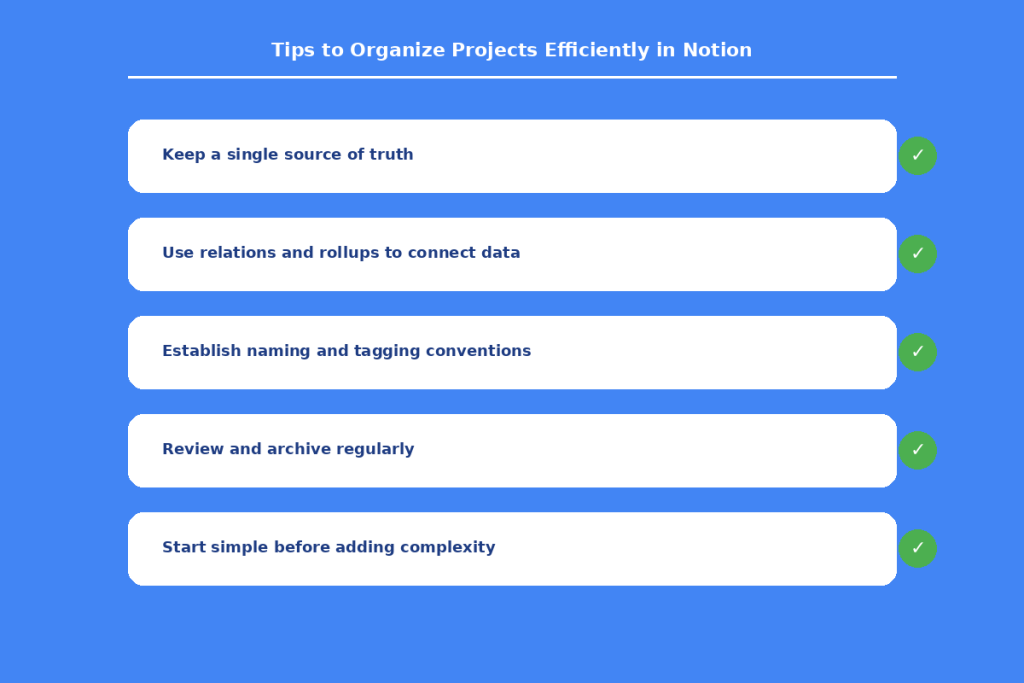
Establish Naming and Tagging Conventions
Agree on consistent naming patterns and tags early, especially if multiple people will be adding tasks. This keeps the database searchable and prevents the same category from appearing under slightly different labels.
Review and Archive Regularly
Set aside time weekly or monthly to archive completed projects and clean up stale tasks. Notion workspaces can get cluttered quickly, and a regular review keeps things easy to navigate.
Start Simple before Adding Complexity
It’s tempting to add every possible property and view on day one, but starting with just status, due date, and owner is usually enough to get moving. You can always layer in priority levels, tags, or custom rollups once the basic system is in daily use and you understand what’s actually missing.
Common Mistakes to Avoid
One frequent mistake is over-engineering databases with too many properties before actually using the system, which slows adoption. Another is rolling out Notion without getting buy-in from the whole team, leading to inconsistent updates and outdated task statuses.
It’s also worth noting that Notion can get clumsy when managing a very large number of projects at once, since pages and databases become harder to interlink as volume grows. Planning your structure with future growth in mind helps avoid this problem later.
A third common mistake is treating Notion like a finished product rather than a system you actively maintain. Properties, views, and templates need occasional revisiting as a team’s workflow evolves; what worked for five tasks a week often needs adjustment once a team is tracking fifty.
Is Notion Project Management Right for You?
Notion tends to work best for solopreneurs, freelancers, content creators, and small to mid-sized teams that value flexibility and want documentation and tasks in one place. It’s also a strong fit for teams already using Notion for notes or wikis, since project management slots in naturally.
Larger engineering organizations with complex dependency chains, or teams that need advanced Gantt charts and rigid workflow enforcement, may find dedicated tools like Jira or Microsoft Project better suited to their needs. The right choice ultimately depends on how much structure versus flexibility your team needs.
A practical way to decide is to run a two-week trial with a real, active project rather than a hypothetical test case. Track how often you find yourself fighting the tool versus how often it speeds things up, and use that experience, not a feature checklist, to make the final call.
Conclusion
Notion Project Management gives individuals and teams a flexible, connected way to plan, track, and complete work without juggling multiple disconnected tools. Its strength lies in combining databases, documentation, and collaboration features into a single adaptable workspace that can be shaped to fit almost any workflow. While it requires more upfront setup than dedicated project management software, the payoff is a system tailored exactly to how you work. Whether you’re managing a solo content calendar or coordinating a small team’s sprint, Notion offers the building blocks to keep projects organized and moving forward efficiently.
FAQs
Is Notion good for project management?
Yes. Notion offers customizable databases, multiple views, and collaboration tools that work well for individuals and small to mid-sized teams managing projects.
Can Notion replace tools like Asana or Trello?
For many small teams, yes. Notion can replicate Kanban boards and task tracking, though it lacks some built-in automation and dependency features found in dedicated tools.
Does Notion support Gantt charts?
Notion has a timeline view that can visualize schedules and basic dependencies, but it isn’t a full-featured Gantt chart tool compared to specialized software.
Is Notion free for project management?
Notion’s Free plan supports unlimited pages for individual use, making it usable for personal project management. Team collaboration features expand starting with the Plus plan at around $10 per user per month.
How do teams collaborate on projects in Notion?
Teams collaborate using shared databases, comments, and @mentions, with real-time co-editing across pages. Guests can also be invited to specific pages at no additional cost on most plans.