Introduction
You may have heard a lot about ChatGPT and have never used it for yourself. You’ve heard about ChatGPT and have yet to use it for yourself. It’s used every day by millions of people for work, school, and daily activities, but it’s easy to get started. This article ChatGPT for beginners will take you through the process step by step, from signing up to writing your initial prompt to utilizing its most useful features. No prior tech knowledge required. At the end of it all, you will be able to sign up, understand how it works, and use ChatGPT with ease in your everyday life.
Table of Contents
What Is ChatGPT?
ChatGPT is a chatbot developed by OpenAI powered by artificial intelligence. You ask a question or a request, and it will respond back in natural, easy to understand language, similar to having a well-versed friend respond back to you. It’s powered by a large language model, in this case GPT-5.5, which was trained on vast quantities of text for a variety of purposes including understanding context, answering questions, and creating writing, code, and more ideas.
What ChatGPT Can and Can’t Do
You can use ChatGPT for writing, brainstorming ideas, summarizing, clarifying concepts, and answering common questions. It can also be used for coding and planning, and for learning new concepts step-by-step. It’s also something many people do before deciding on something, such as comparing prices on two laptops, or planning a travel schedule.
However, ChatGPT has its limitations. It may also sometimes make mistakes with information, so it is best to double check anything important – particularly numbers, dates, medical or legal information. It also doesn’t actually “know” what it is talking about, as it is making a prediction based on the pattern of the text; that is why it can sound very confident when it is wrong.
Free vs. Paid Plans: A Quick Comparison
As of now, ChatGPT has a handful of plans. The Free plan provides you with basic everyday access, along with a few usage restrictions. ChatGPT Go is an alternative to ChatGPT with lower costs and higher limits, designed for frequent users. If you’re looking for quicker responsiveness and more sophisticated models, then Plus is likely the best bet. Pro and Business plans are designed for power users and teams with more usage limits and collaboration features.
Step 1: Creating Your ChatGPT Account
It only takes a couple of minutes to get started. Go to chatgpt.com or download the iOS or Android app. There will be a signup button with an email address, or you can sign up with a Google, Microsoft or Apple account for a quicker sign up.
After selecting a sign-up process, you’ll receive an email to verify your email or to confirm a linked account. This step will help to ensure your account is safe. Once you have been verified, you are immediately taken to the main chat screen where you can begin your first conversation.
You might also receive some brief questions to answer about setting up the ChatGPT, such as how you intend to use it or if you want it to reply to your interests. These are not required, and can be modified at any time through the settings menu. Don’t agonize over this step; you can begin to chat immediately and then fine tune preferences along the way.
Step 2: Getting Familiar with the Interface
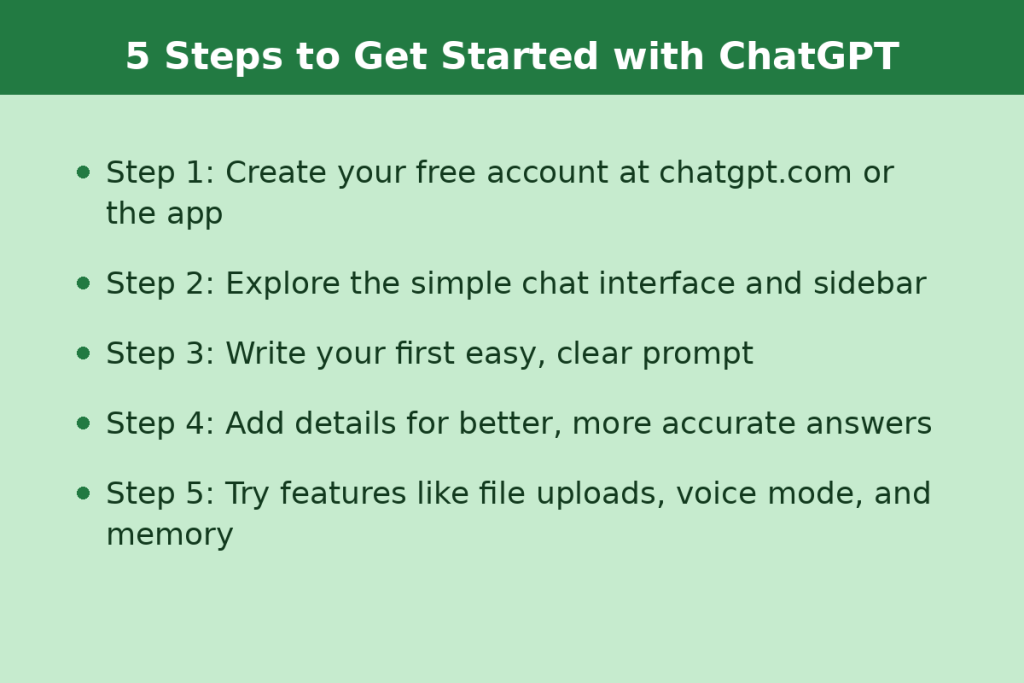
The ChatGPT screen is streamlined for simplicity. You’ll see a sidebar on the left with your previous chats listed, and a textbox at the bottom where you can type your chat. A settings menu allows you to change settings such as personalization, memory and appearance.
You’ll also see small icons near the message box to attach files, use voice input, and select a response style. At the top of the screen, you’ll see a model picker that allows you to select the model that ChatGPT should use to respond to your request. It can be left at the default setting for beginners as it will automatically balance speed and depth of the questions for most of the common questions.
Starting New Chats vs. Continuing Old Ones
There is an option to start a new topic at any time, which you can do by clicking “New Chat”. All previous conversations are stored in the side bar for you to come back to later. If you have multiple projects and need to keep things sorted, it’s particularly handy.
Mobile App vs. Desktop and Web
ChatGPT operates almost identical on all devices, allowing users to continue conversations seamlessly from one device to the next. The mobile app also features voice communication, allowing users to speak to ChatGPT rather than typing, which can be useful when they are away from their keyboard.
Step 3: Writing Your First Prompt
The message or question you type to ChatGPT is referred to as a “prompt. No special formatting or codes are needed. You can ask student questions such as simply “What is a good chicken and rice recipe for dinner?” or “What is photosynthesis in simple terms?
Common Beginner Mistakes to Avoid
People new to the service tend to ask too vague a question, such as “help me with my resume” with no further details. Be specific about what it is you’re looking for, and don’t hesitate to ask further questions to ensure the first response is correct. ChatGPT keeps track of the context of your current conversation, making it easy to continue the discussion seamlessly.
Step 4: Understanding Prompt Basics for Better Results
How well you explain what you want often determines the quality of your results. Avoid the general question of “write something about marketing,” instead propose this: “write a 200-word Instagram caption promoting the new fall menu for a coffee shop. Details such as tone, length, and audience will help ChatGPT customize its response.
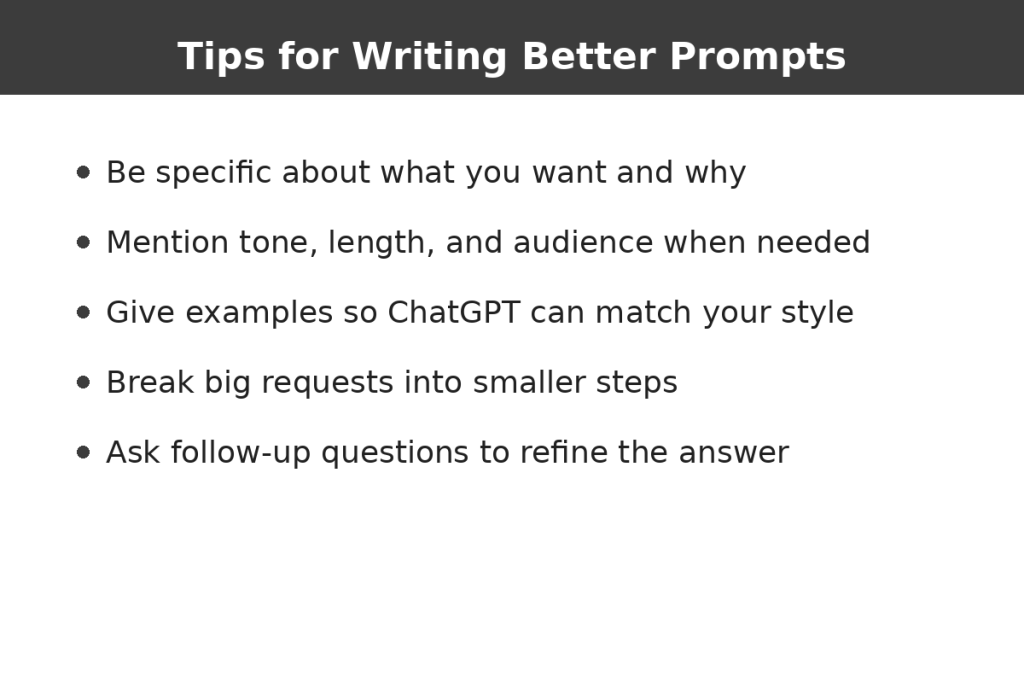
Examples are very helpful. To get an email in a specific tone, copy and paste a sample of the writing you like and request ChatGPT to create an email that captures the same tone. Don’t forget, you can ask it to revise, shorten, or rewrite an answer until it is the right answer.
One of the other good tips is to split up large requests into smaller ones. Ask for outline plan first, then ask for each part in turn, rather than asking for an entire plan. This allows you to have greater control over the output, and helps you steer ChatGPT in the direction you want.
Step 5: Exploring Key Features
When you’re familiar with the basic prompts, it’s time to try out some of ChatGPT’s features. If you do not like the answer you received you can regenerate it and/or edit the answer you received to continue the chat without having to start over again.
Uploading Files, Images, and Using Voice Mode
It is easy to attach documents, spreadsheets, or images directly to a chat and ask ChatGPT questions about them, making it ideal for summarizing reports or analyzing data. Voice mode allows you to talk to your questions and receive an answer in speech mode, simulating a human conversation.
When you add a picture, ChatGPT can tell you what it’s seeing, read the text from a picture, or explain a chart or graph. It can come in handy for reading a handwritten note, looking at a homework problem or a second time at a screenshot of an error message.
Tasks and Memory
Moreover, you can use the Tasks feature of ChatGPT to set recurring or single reminders, which means you can ask ChatGPT to remind you about it every day or each week without having to ask every time. The memory function allows it to recall useful information between conversations, such as information about your preferences, projects or other things that matter.
You can also create a separate Project space and file related files, instructions and conversations in that space when building longer or more complicated projects. This is particularly helpful when you’re interacting with ChatGPT for a longer period of time, such as a course you are taking or a small business that you are running, as you won’t have to explain the background again each time.
Practical Everyday Use Cases for Beginners
Once you understand how to use ChatGPT, it seamlessly integrates into your everyday life. It’s used by tech-savvy users and professionals, but it can also be used by students, parents, small business owners and retirees, depending on what they’re looking for. Below are a few basic uses for beginners..
Writing and Communication
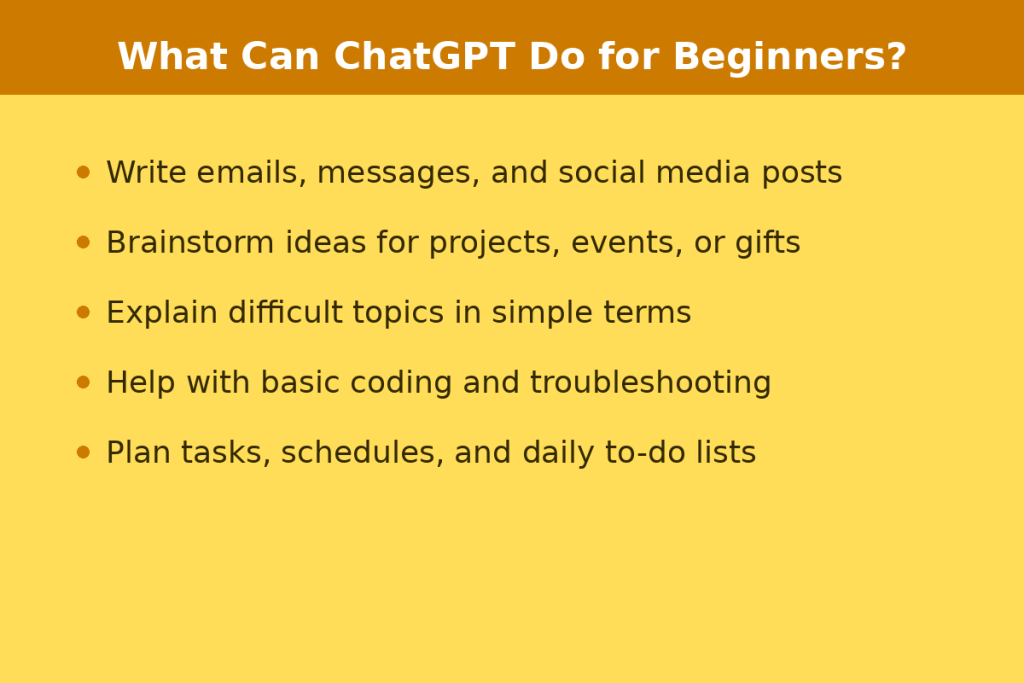
Writing emails, text messages or social media posts becomes much quicker. Whether you’re trying to write a follow-up email or polish up a rough idea into a finished paragraph, ChatGPT can help you in seconds with a well-crafted, polite response.
Brainstorming and Learning
Whether you’re planning a birthday party or studying for an exam, ChatGPT can brainstorm ideas or break down complex topics into simple steps. It even provides interactive learning resources about things such as math and science, allowing you to explore concepts as they go.
Students use it to practice for tests, ask for an explanation to a topic in another way, when a textbook is unclear, or to test their understanding of a topic before handing in an assignment. Superb addition as a patient study companion who will not get bored repeating yourself.
Coding, Planning, and Organizing
For those learning to code, ChatGPT can provide explanations to error messages and even generate basic scripts. It’s also great for arranging your day, creating a checklist or planning a project timeline.
Shopping and Everyday Decisions
Additionally, ChatGPT can assist with routine choices, such as comparing products before purchasing, or determining gift suggestions for someone. It can narrow down suggestions that are realistically in your budget, fit your preferences, and will actually be appropriate for the occasion by describing your budget, preferences, and the occasion.
Tips for Getting the Most Out of ChatGPT
It is the little things that add up to a lot of things. The more specific you can be in your prompts, the better; feel free to ask ChatGPT to tone, length, or format it. You can also save valuable conversations or create folders for them to be able to find helpful answers without having to re-enter all of them.
Also, check the facts on anything that is important, particularly statistics, quotes or specific claims. When it is essential that things are accurate, ChatGPT is a handy tool, not a substitute for authentic sources.
Last but not least, don’t be afraid to try something new! Sometimes if you re-word the question or ask ChatGPT to explain its answer, or if you try another approach to a problem, you’ll get better responses than if you always went with your initial “best guess”.
Common Beginner Concerns Addressed
If you are a new user, you may ask yourself whether you can trust using ChatGPT or not. Normally, yes, but try not to post any form of sensitive information, such as passwords or financial information, in a chat. OpenAI also has privacy controls to manage or delete your data and to disable memory.
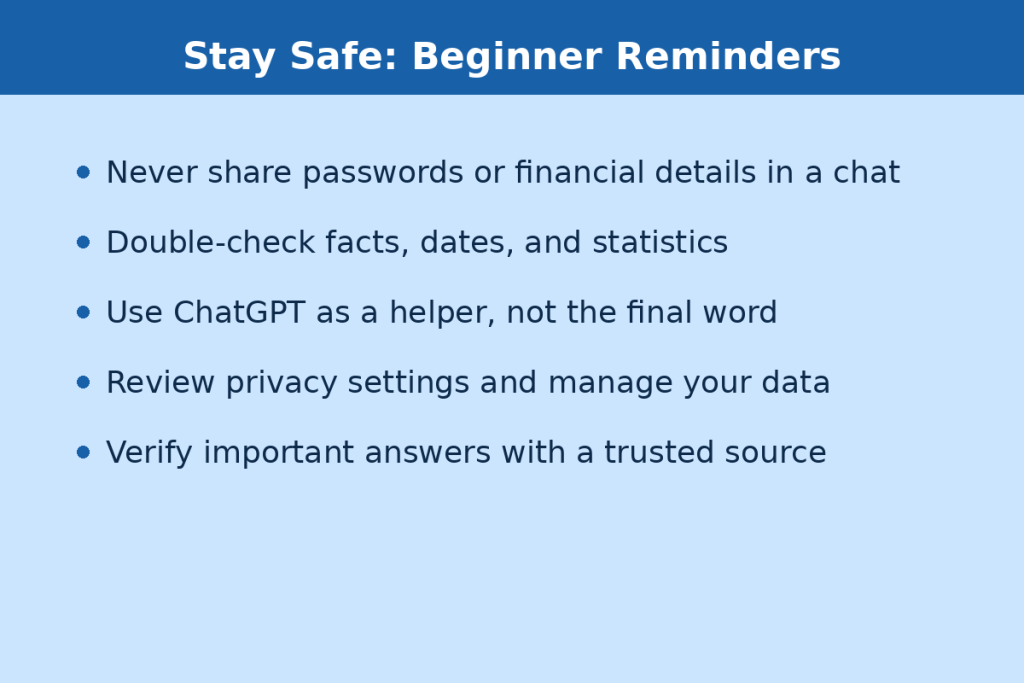
When it comes to accuracy, the ChatGPT can sometimes give answers that it appears to be sure of but are incorrect, known as “hallucinations. This tends to be more common with very specific facts; always double check important facts before using them.
Others new to the process are afraid of relying too heavily on AI or the loss of manual practice skills, such as writing. The best way to use ChatGPT is to use it as a springboard and/or a second opinion, rather than as a final answer, and to leverage it to accelerate your work but also use your own judgment.
Conclusion
It doesn’t have to seem impossible to get started. This ChatGPT for Beginners Tutorial explained how to create the account, navigate the interface, compose better prompts, and utilize other helpful features such as uploading files, using voice mode, and memory. The easiest way to gain confidence is to begin writing and tinker while you’re at it. Go ahead to ask it a question you have today and you will soon discover how it can be incorporated into your daily routine, whether you are writing, learning, planning or simply getting the answers you need to everyday questions.
FAQs
Is ChatGPT free to use?
Yes, ChatGPT has a free plan with core features. Paid plans like Go, Plus, and Pro offer higher usage limits and access to more advanced models.
Do I need to download anything to use ChatGPT?
No, you can use ChatGPT directly in a web browser at chatgpt.com. Mobile and desktop apps are also available if you prefer.
Is ChatGPT safe for beginners to use?
Yes, it’s generally safe for everyday use. Just avoid sharing sensitive personal information like passwords or financial details in your chats.
Can ChatGPT make mistakes?
Yes, it can occasionally give incorrect or made-up information, especially with specific facts. Always double-check important details from a reliable source.
What can I use ChatGPT for as a beginner?
Common beginner uses include writing emails, brainstorming ideas, learning new topics, planning tasks, and getting quick answers to everyday questions.