Introduction
If you are getting tired of having to switch to several apps to take notes, tasks and projects, you might want to learn how to use Notion and change the way you work and live. Notion is an integrated workspace that combines notes, tasks, databases and calendars. Used by students, freelancers, professionals, and whole teams worldwide. Notion is no longer just a note-taking app; it has seen significant growth, reaching more than 30 million users by 2026 and integrating robust new AI capabilities. This article will take you through all the steps and steps and steps to get you going with your daily to-do list or creating a complete personal productivity system — whatever you want to do — in plain and simple English.
Table of Contents
What Is Notion?
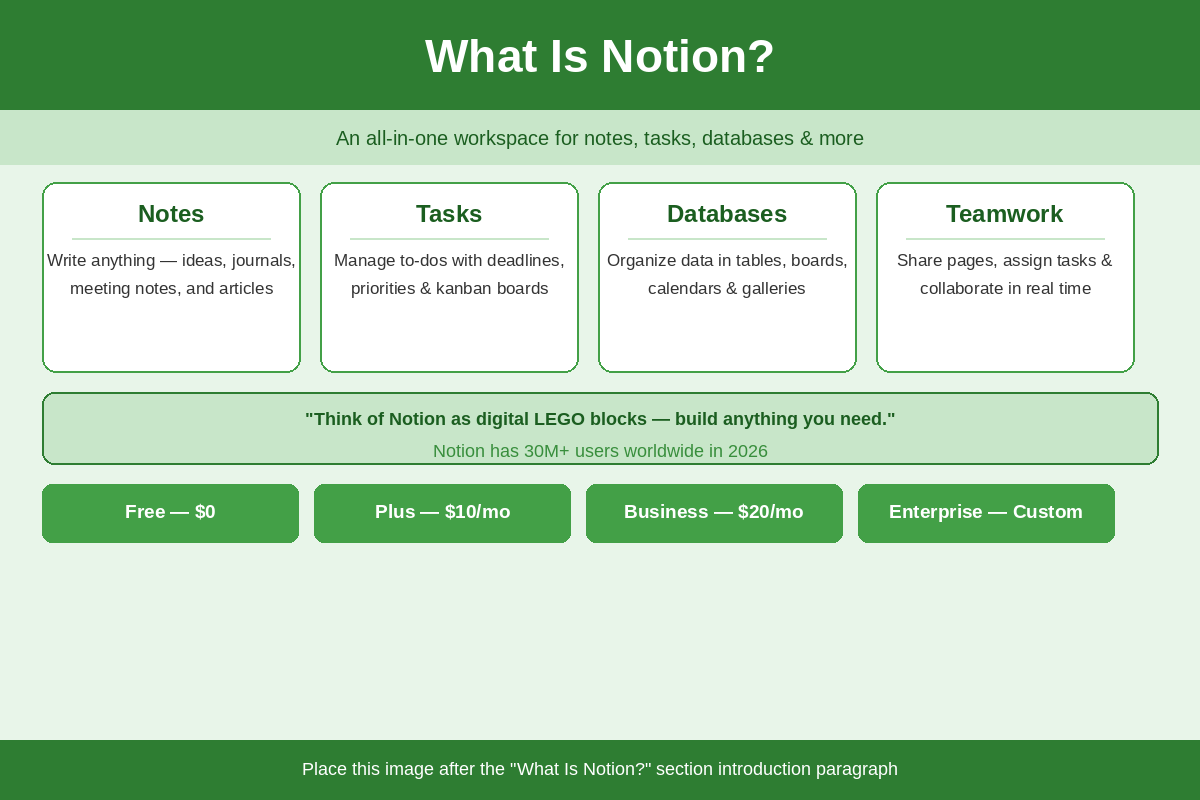
Notion is an online workspace that integrates notes, database tables, tasks, wikis and calendars into one. Just as blocks of digital code, you stack them together however you want, for things that happen in your life or work. It was launched in 2013, and quickly established itself as one of the most downloaded productivity applications worldwide.
The advantage of Notion over other tools is its versatility. While Evernote is primarily used for notes and Trello for task boards, Notion allows you to combine both. Write a journal, monitor a project, create a habit tracker, and reference notes — all in the same workspace!
Notion Pricing in 2026
Notion has four pricing plans to cater to different requirements:
- Free Plan ($0) — Ideal for one person. Unlimited pages/blocks for single user use, up to 10 guests, up to 7 days of version history included.
- Plus Plan ($10/user/month, billed annually) – perfect for small teams. Unlimited guest access, 30 days version history, and access to Notion Sites.
- Business Plan ($20/user/month, billed annually) — Ideal for expanding businesses. Access the full Notion AI, private team spaces, and SAML SSO.
- Enterprise Plan (Custom pricing) — For large companies that require more advanced security, audit logging, and support.
If you’re a beginner, the Free Plan is sufficient for you. Students and educators also get the Plus Plan for free by signing up with a school email address.
Setting Up Notion for the First Time
Notion is easy to get started and quick to learn. Go to notion.com and register for a free account with your email or Google account. You can access your workspace from anywhere with this app on the Web, desktop (Windows and Mac) and mobile (iOS and Android).
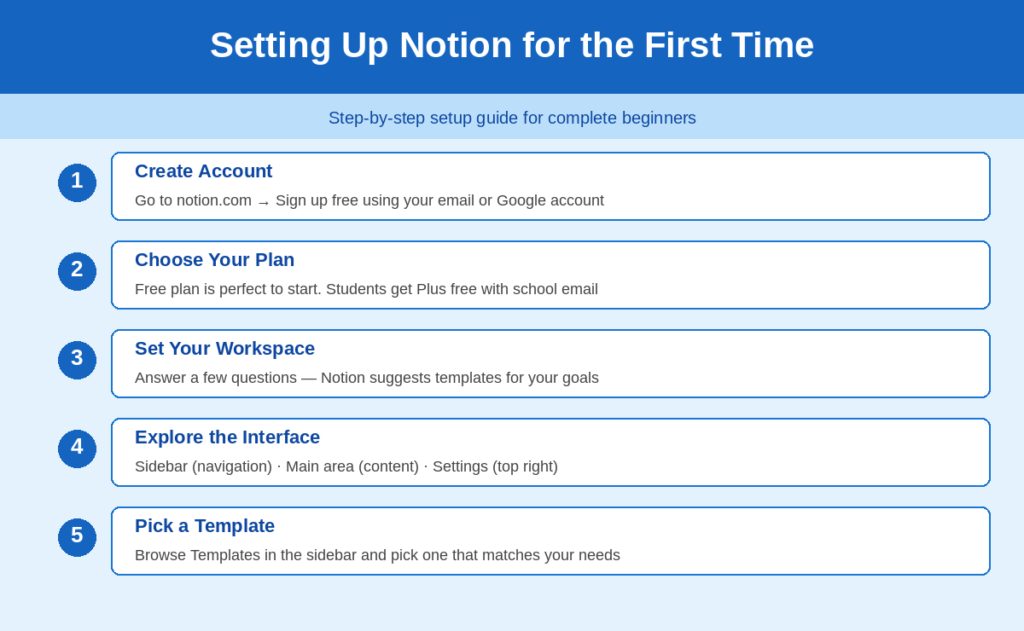
After signing up, you will get the home screen of the Notion application. The sidebar is on the left side, it displays your pages and navigation. The main area in the center is where you create and edit your content. The page title, sharing options and settings will be located at the top.
Notion will ask you a few simple questions when you sign up, which reveals how you’ll use the app (for yourself, for study or for work). Depending on your responses, it will offer you some starter templates. This step is not something that should be thought out too deeply. It’s easy to make adjustments later when you’re more comfortable with your setup.
Understanding Notion’s Core Building Blocks
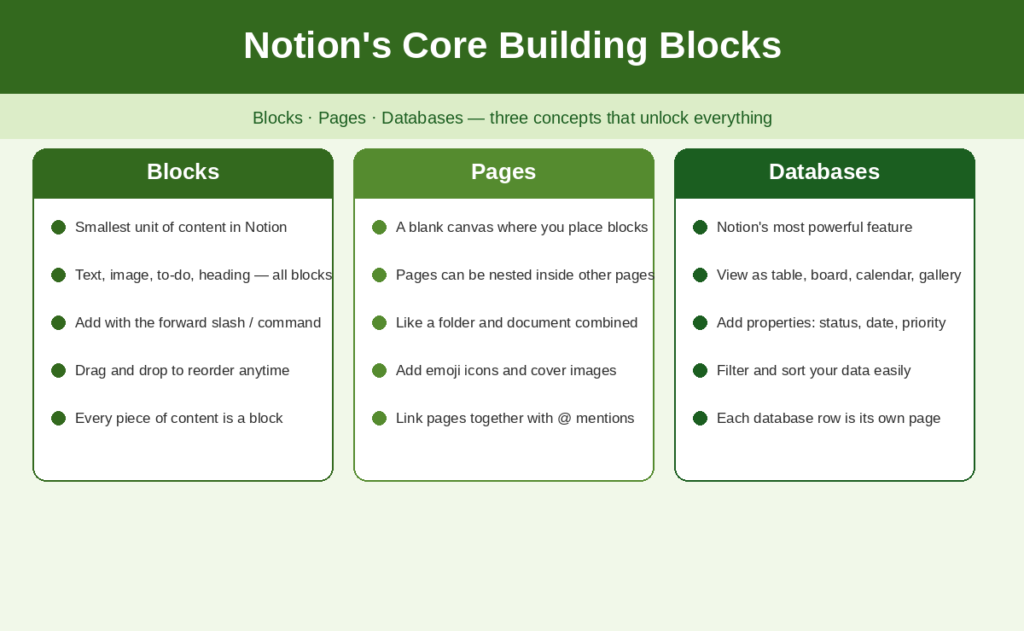
To get started on creating your workspace you should be familiar with three concepts: Blocks, Pages, and Databases. Knowing these will make a lot more sense in Notion.
Blocks
Notion’s smallest unit is a block. Each and every piece of content is a block – a paragraph of text, a to-do checkbox, an image, a video, a heading, etc. To add blocks, click anywhere on a page, then type, or use the forward slash ( / ) command to select from a list of block types. Blocks can be dragged and dropped to create any desired order.
Pages
A page is similar to a document or a blank canvas that you can use to arrange your blocks. You can nest pages within other pages which allows you to create an orderly and clean structure. For instance, you can include ‘Reading List’ and ‘Personal Goals’ in sub-pages of the ‘My Life Dashboard’ page, and then have ‘Work Projects’ as a sub-page of that page.
Databases
Databases are the most powerful aspect of Notion. A database is a group of pages with the same set of properties (such as a status label, due date or priority tag). Same database can be displayed in various formats: table (like a spreadsheet), Kanban board (like Trello), calendar, gallery, list or timeline. That’s very flexible for tracking tasks, projects and habits in databases.
How to Organize Your Life with Notion
Here’s four ways for beginners to begin organizing now.
1. Build a Personal Dashboard
Notion’s personal dashboard is your home base. Make a new page and call it, for instance ‘My Dashboard’ or ‘Life HQ. You can link to your most important pages here, include a daily ‘to do’ list, write a brief morning journal or even include a calendar view. A nice dashboard allows you to see all the important data in one glance a day.
2. Manage Tasks and To-Dos
It’s easy to create a task manager in Notion. Use a database and add some properties such as ‘Status’ (Not Started, In Progress, Done), ‘Due Date’, and ‘Priority’. You can view and drag tasks between the columns on a Kanban board view. Not only is this more than a simple to-do list app but each task is also a page where you can add notes, attachments and sub-tasks.
3. Build a Note-Taking System
Notion is great for taking notes during a meeting, lecture, book, or just about any random idea. You can set up a ‘Notes’ database and tag your notes with different categories, such as ‘Work,’ ‘Personal,’ or ‘Ideas. Find notes quickly and easily by using filters. The Notion Web Clipper browser extension also enables you to clip articles and pages from the web while you are surfing the internet.
4. Track Goals and Habits
Keep an eye on your habits and goals? Make a very basic table of your habits in rows and days of the week in columns. Put a check in the box next to each habit when it is completed. Another option is to create a goals tracker that you can add pages to and write progress notes, deadlines, and action steps on each page, which are connected to your task database.
Notion Templates — Save Time Instantly
You don’t have to create everything from scratch. Notion offers a vast collection of pre-designed, free templates that can be immediately downloaded and used to create a new project. Templates are pages that have been built for you to duplicate and style to your liking.
Popular beginner templates for 2026 are Weekly Agenda, Student Planner, Reading List, Habit Tracker, and Personal Journal. These will be found by clicking on ‘Templates’ from the left sidebar and then navigating through the categories. There are also thousands of free and paid templates developed by the Notion community available on websites such as Notion.so, Red Gregory, and Thomas Frank’s course site on Notion.
It’s simple to use a template. Select the template you are interested in, click on ‘Use This Template,’ and it will be added into your workspace as a new page. Then you can rename it, alter the layout, add or remove properties, and personalize it.
Notion Tips and Tricks for Beginners
After mastering the basics, these are some tips to help you perform more efficiently and effectively in Notion.
- Experiment with the slash ( / ) command — Type / on any page to bring up the block menu. Add headings, images, databases, and more the quickest way possible without using your mouse.
- Know some keyboard shortcuts — Press Ctrl+N (or Cmd+N on Mac) to create a new page. Use Ctrl+[ and Ctrl+] to go back and forth between pages.
- Full Width (toggle on only in the 3 dots (…) on the top right of any page): Lets you make your pages wider for more space.
- Add emojis and covers — Add your emoji and cover image to your pages. This will help your work area look cleaner and more pleasant to work in.
- Connect pages together — An internal link is created by using the @ symbol and then the name of the page. This links similar pages and aids you in constructing a well-connected knowledge system.
- Download the Notion Web Clipper — Save any content on the web in a single click to your Notion workspace.
Common Notion Mistakes Beginners Make
Many beginners make the same mistakes when they first start using Notion. Knowing these in advance will save you a lot of frustration.
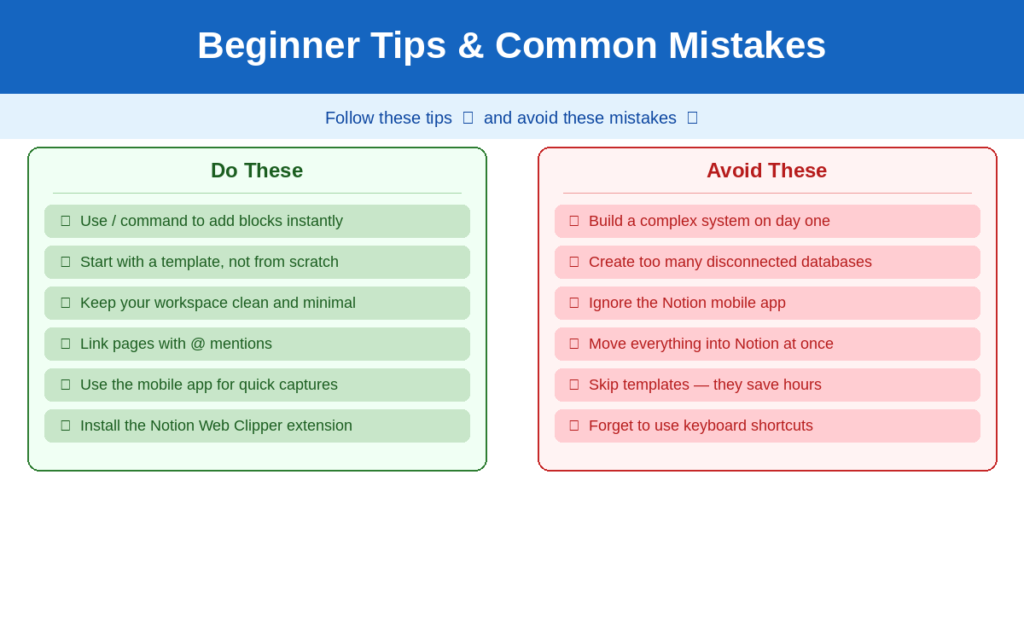
- To complicate things too prematurely — It is the worst thing to do is to build the ideal system from the start. Start simple. One page to-do list for one page. Don’t complicate things if you don’t have to.
- Making too many databases — With so many disparate databases not connected to one another, it becomes quickly messy and difficult to manage. Be minimal and be connected.
- No templates — You can work without having to develop everything from scratch. Use a template and then add in details. This eliminates hours of set up time.
- Not using the mobile app — Since many people only use Notion on their desktop, the mobile application is an excellent way to make quick notes during the day.
- Attempt to have everything in Notion all at once — choose a domain of your life to begin with, tasks, notes, a reading list… and get familiar with it first, before branching out..
Notion vs. Other Tools
If you’re not familiar with Notion, you might be wondering how it fits into your existing app stack. Here are some quick facts:
Notion vs. Google Docs — Google Docs is suitable for straightforward documents and simultaneous collaboration. Notion is the better choice when you require structure, databases and an all-in-one workspace.
Notion vs. Evernote — Evernote is dedicated solely to taking notes. Notion is a place that provides you with notes, tasks, databases and a lot more.
Notion vs Trello — Trello is a Kanban board software. Notion can be a much more comprehensive solution that can be used for Kanban boards AND notes AND databases.
Notion vs. Microsoft OneNote — OneNote is a free product and can be used with Microsoft 365. Notion is more flexible and powerful to build organized systems, but less related to the Microsoft ecosystem.
So the truth and the whole truth is that Notion isn’t the optimal solution in every instance. For complicated spreadsheet operations, use Excel or Google Sheets. For those who are already a part of the Microsoft world, OneNote may be more useful. However when it comes to creating a personal productivity system, Notion is a difficult-to-beat application.
Conclusion
Starting Notion isn’t much of a hassle. It’s all about starting small – make one page, use one template, form one habit at a time. As you get more comfortable, you’ll find new uses of the platform that work for you. In 2026, Notion is even more powerful, boasting AI capabilities, a newly enhanced mobile app, and thousands of community templates to choose from. This simple tool is a must-have for everyone, from students to professionals or those who want to look more organized. Do the first thing today — you’ll be grateful to yourself in the future.
FAQs
1. Is the Notion app cost-free?
Yes. Notion’s Free Plan is free to use and offers unlimited pages and blocks for personal use. It has the capability to allow 10 guest collaborators and 7 days of version history. For most individuals and students just starting out, the free plan will suffice.
2. Can I use Notion offline?
Only a few features work offline in Notion. Actively opened pages can be viewed and edited offline, but only fully with internet connection – search feature and syncing. The cell phone application also stores some material offline, however, it works best online.
3. Does notion work for students?
Notion is a great tool for students. Excellent for organizing lecture notes, assignments, reading lists and building a study planner. Even better, students and educators can register with a school or university email address to get full access to the Plus Plan for free!
4. How is Notion different from Google Docs?
Google Docs is a word processor designed to create documents and collaborate in real time. Notion does so much more — it integrates notes, task management, databases, wikis and calendar into a single workspace. Google Docs might be better suited for a single document, while Notion will be more beneficial for creating a system for many parts of your life.
5. Do I have the ability to invite others to my Notion pages?
Yes. You can share any Notion page by clicking the ‘Share’ button at the top right of the page. Invite people to collaborate by sending them an email or create a public link which allows anyone with the link to access the page. Settings allow you to manage visibility, commenting and editing of your content.