Introduction
Google NotebookLM is a strong AI research assistant that aims at making people understand complicated information, working with their own documents. It was extensively upgraded in November 2025, making it a full-fledged research power. These features consist of improved chat, Deep Research tool, and the support of such files as Google sheets and Word. Whether you’re a student, researcher, professional, or content creator, the Top 10 Google NotebookLM Features can streamline your workflow. With AI-created podcasts and interactive mind maps, NotebookLM today has smarter, faster and more personal knowledge and research management.
Table of Contents

1. Deep Research Tool
What It Is
The newest feature of NotebookLM is the Deep Research, which was launched in November 2025. This is an extremely effective tool that is your own dedicated AI researcher, able to conduct complex online research and automate it what would have otherwise taken hours to do by hand.
Deep Research constructs systematic research plans and then goes ahead to systematically search hundreds of websites to obtain information. The system sifts out poor quality in order to give preference to credible sources and compiles the results into detailed reports with detailed source referencing. Deep Research operates multi-step investigations unlike mere web search which changes and becomes more efficient with each thing they learn about your subject matter.
The only difference between Deep Research and the others is that it functions in the background and you can keep working. A majority of research jobs are done within couple of minutes and provide comprehensive reports that can directly be added on your notebook.
How to Use It
It is easy to begin with Deep Research:
- Once in your notebook, go to the source panel.
- Choose the Web option as the type of source in the dropdown list.
- Choose your research style:
- Deep Research: This is the best in the event of thorough briefings and in-depth analysis is required.
- Fast Research: This is appropriate when one wants fast searches and instant access to information.
- Deep Research: This is the best in the event of thorough briefings and in-depth analysis is required.
- Write your research query or question in details.
- See the research plan generated by NotebookLM.
- Allow the AI to go through websites as you do other tasks.
- Send the completed report and references to your notebook.
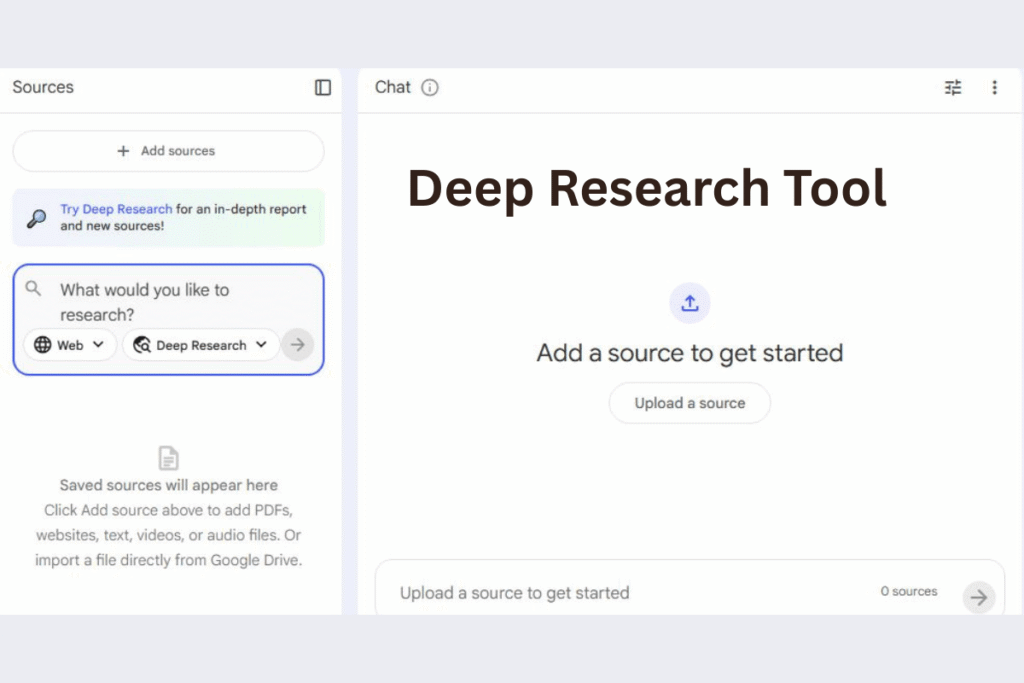
It is also possible to refer Deep Research to particular online sources or to recommend to add articles and papers as the research evolves.
Beginner Tips
In order to maximize Deep Research:
Ideal in academic study: Ideal in literature reviews, collection of scholarly articles, and comprehension of difficult academic subjects.
Market research: Competitor research, industry research, and market research.
Competitive research: Devote a lot of intelligence on other organizations or products.
Deep Research generates source-grounded outputs and cites them clearly, which means that you can trace how exactly conclusions were drawn. Such transparency renders it indispensable to work that needs verification and credibility.
To achieve maximally effective outcomes, specify and narrow research questions instead of broad areas. The smaller your query the narrower and better your research report shall be.
2. Enhanced Chat with Custom Goals
What It Is
The chat of NotebookLM was upgraded massively, and it became essentially smarter and more flexible. The latest Gemini models give the enhancements the power, and it is one of the major improvements since the launch of the platform.
The new chat has also improved the size of its context window to one million tokens which is eight times more than it was previously. It is equivalent to the fact that NotebookLM will be able to examine significantly larger document sets without missing out any valuable information. Also, multi-turn conversation ability has gone up more than six times meaning that you can now have a long, more continuous conversation without the AI losing the previous sections of the conversation.
The best of these features is perhaps the new capability to create custom goals to your notebook. Now you are able to determine certain roles or voices or goals that define how the AI will act during your whole session. Such personalization turns NotebookLM into a specialized partner, but only specific to your needs.
How to Use It
It is easy to set personal objectives:
- Click the icon of configuration in the chat interface.
- Explain your aspiration, position or personality of the AI.
- Tune preferences in the tone and length of response.
- Begin talking to the AI that has been personalized to your needs.
Examples of custom goals that you can create:
Teacher mode: “Behave with me as a PhD student. Critically question all assumptions and find logical fallacies.
Research assistant: “Be my committed research associate. Give extensive analysis in more than one way.
Game master: “Design a text based simulation that is interactive and has certain objectives and obstacles.
Marketing strategist: “Respond as a lead marketing strategist with action, analytical guidance.
Your discussion history will now be saved automatically and will continue over a session so that you can easily pick up long term research projects at the point where you left them.
Beginner Tips
To optimize the improved chat capabilities:
Begin with goal-setting: Figure out what you want to achieve, prior to getting into your research.
Test out other modes: The experiment is to test different personas and find which mode fits best to your project.
Apply the extended memory: There is no reason to be afraid of long complex conversations, the AI is now able to support the extended, complex interaction.
In case of collaborative notebooks: It is important to remember that your conversations are still confidential even in joint notebooks.
The platform has been demonstrated to have significant user satisfaction, especially when dealing with large source collections. These improvements render NotebookLM particularly effective with multi-source research projects that are complex..
3. Audio Overviews
What It Is
One of the most favorite NotebookLM features is the Audio Overviews which can turn your documents into a great podcast type of discussion. Your source material is discussed in a natural, conversational deep-dive by two Artificial Intelligence hosts summarizing main points, drawing parallels between two subjects, and even playing back and forth to simplify challenging content.
The feature supports the following formats now Brief (quick highlights), Critique (analytical examination), and Debate (exploring multiple perspectives). Audio Overviews support several languages; thus, you are able to learn in any language of your choice. It is even possible to be an active participant of the conversation, talking with the AI hosts, asking questions or seeking clarifications.
How to Use It
It is very easy to make your first Audio Overview:
- Create a notebook or open one and insert your source materials.
- Use your right hand side of the screen to navigate to the Studio panel.
- Click on audio overview to create.
- Select the format of your choice (Brief, Critique, or Debate).
- Choose your output language, which is not your default.
- NotebookLM is making your audio, wait a few minutes.
- Get the audio file to listen while on-the-go.
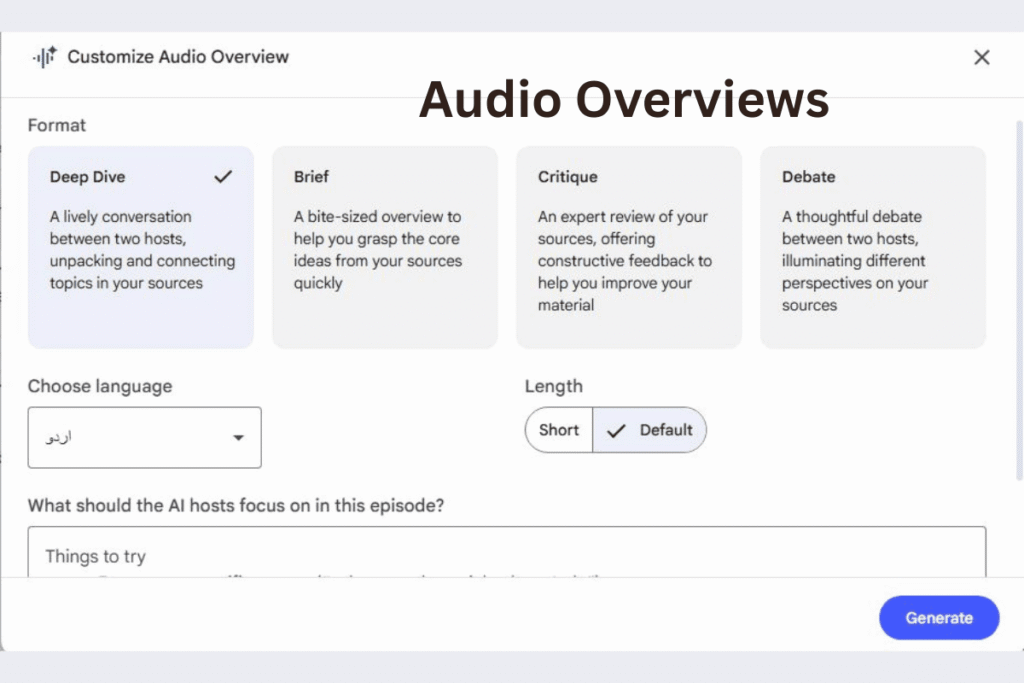
Creation of the Audio Overview in the background means that you can still work on other tasks or create more Studio outputs at the same time.
Beginner Tips
In order to derive maximum benefit out of Audio Overviews:
The research papers, long articles, course notes and study materials are the best sources.
Use of various formats is determined by the following:
Brief: Short revision before the meeting or exams.
Critique: profound knowledge of arguments and evidence.
Debate: Discussion of problematic issues in which there are multiple sides to the debate.
Multitasking plan: Play Audio Overviews during commuting or working out or even doing housework to spend as much time as possible learning.
Interactive mode: When the option is provided then use the join option to ask the follow-up questions and interact with the AI hosts directly.
It is worth remembering that Audio Overviews are based on your uploaded materials, and it does not give unbiased summaries. Their best use is when you have filtered in on relevant high-quality content.
4. Video Overviews
What It Is
Video Overviews are a visual learning app of NotebookLM, which converts thick documents into slide presentations with a narrator. These professionally designed visual tours are generated with the help of superior AI and extract images, diagrams, quotes, and numbers in your source materials to generate interesting explainer videos.
The feature presents several visual options such as Watercolor, Papercraft, Anime, Whiteboard, Retro Print, and Heritage so that you can adulterate the look according to your preferences or target audience. You have a choice of two types Explainer (advanced, structured videos to grasp with in-depth) and Brief (bite-sized videos to get a quick grasp of the concept).
Video Overviews are especially useful in terms of explaining data, illustrating processes, and putting abstract concepts in a more concrete form with the help of visual representation.
How to Use It
To create Video Overviews, one just needs to do:
- Insert your sources in a note book.
- Navigate to the Studio panel
- Click on Video Overview and generate.
- Personalize your video by clicking on the pencil:
- Type of format (Explainer or Brief)
- Choose visual style
- Apply steering cues to target individual areas.
- Select output language
- Get the video to play itself.
- Post, re-post or view your video when finished.
Great customization features will enable you to customize your preferences, including “only concentrate on the cost analysis parts” or rather you need to concentrate on preparation efforts and cooking duration.
Beginner Tips
To achieve the best Video Overview:
Best types of content Visual treatment is most effective with technical documentation, data-intensive reports, process description, and education.
Video vs. audio option: Videos should be used where the visual representation leads to better interpretation (charts, diagrams, processes), and audio used where the content is narrative or theoretical.
Videos Overviews: These are best shared with teams when training new members or developing training resources.
Accessibility of language: Produce several versions in various languages to international audiences.
Video Overviews are presently offered in over 80 languages and thus effective means of communication and learning globally.
5. Flashcards and Quizzes
What It Is
NotebookLM is the perfect application where you get flashcards and quizzes created automatically using the contents of your uploaded contents in order to study and test your knowledge. The study aids come in web, Android, and iOS applications so that you can study everywhere and anywhere.
The system generates user customizable flashcard sets where the difficulty level and number can be changed to suit your needs and learning speed.
How to Use It
It is easy to make flashcards and quizzes:
- Place your research papers on a notebook.
- Go to the area of learning tools.
- Choose Flashcards creation or quiz generation.
- Adjust settings:
- Card amount: Few, Standard or More.
- Difficulty level: Easy, Medium or Hard.
- Read and learn using the produced material.
- Study using the mobile application anywhere.
The flashcards are based on your source material and automatically recognize key points, definitions and other important facts.
Beginner Tips
In order to make the most out of your studies:
Active recall practice: Do not passively go through flashcards but actively attempt to remember the answer before turning the card.
Selection of sources: 3-5 good quality sources are ideal to generate flashcards in the best way – too little sources will provide limited content, too many will produce too much content.
Combine techniques: Flashcards, Audio Overviews, and Study Guides can be used to study together.
Mobile benefit: The NotebookLM mobile application will allow you to study on the way to campus or during idle time during your day.
Progression in difficulty: Begin with Easy level flashcards and get used to the material, and then advance to Medium and Hard.
Repeat with Notebook flashcards Long-term memory of information of a complex nature can be greatly enhanced with regular spaced repetition.
6. Interactive Mind Maps
What It Is
The Mind Maps in NotebookLM give you a visual presentation of complex topics and aid in navigating, exploring the relationship and getting a deeper insight into it. This is because these automatically created diagrams display hierarchical relations among concepts in whatever you have in your sources, and thus the abstract connections become tangible and visible.
Mind Maps are dynamic and you can extend and look into various nodes to uncover sub topics and more details. This visualization tool can be used especially to know the relationship between the different ideas and how to see patterns in your research materials.
How to Use It
Mind Maps creation is fast and easy, and it is simple:
- Add pertinent materials to your notebook.
- Navigate to the Studio panel
- Click “Mind Map” to generate
- Explore the visualization that was generated:
- Click on nodes to open sub topics.
- Move in a hierarchical manner.
- Establish relationships among concepts.
- Save as a PNG picture, which can be used in presentations or shared.
- Mind Maps will automatically create according to what you write in your notebook and intelligently create hierarchies of the information.
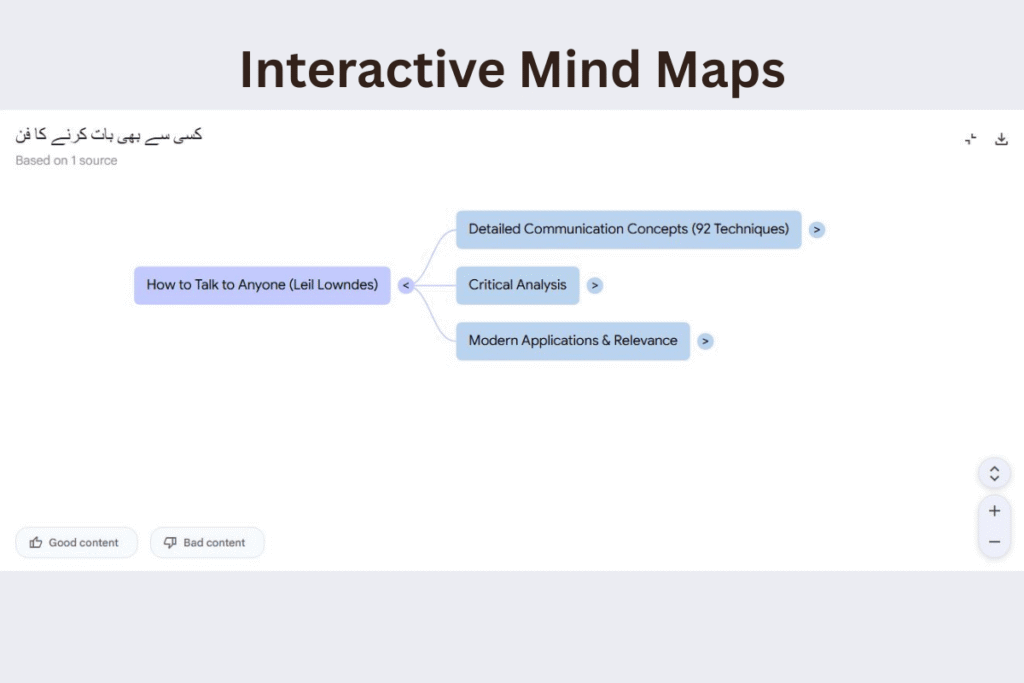
Beginner Tips
In order to take advantage of Mind Maps:
Literature reviews: Map relationships between various research papers, theories and findings.
Project dependencies: Visualize the relationship among various components of the project
Brainstorming: Mind Maps can be used to find new directions and get to know surprising links in your work.
Types of the best sources: The best Mind Maps are formed by well-structured documents that define the themes and concepts used clearly.
Use Mind Maps in conjunction with other features of the Studio to gain a complete picture. An example is to listen to an Audio Overview and at the same time explore a Mind Map, so as to stimulate both auditory and visual modes of learning.
7. Custom Reports and Documents
What It Is
NotebookLM is capable of creating different professional types of documents using your sources and converting raw research into formatted and polished documents. The platform will provide four report format options that include Custom, Briefing Doc, Study Guide, and Blog Post.
The system offers you dynamically suggested input, depending on the themes, topics, or industry in which your sources appear and allows you to make the necessary documents, which are appropriately formatted and can be used in various circumstances and with different people.
How to Use It
It is easy to develop custom reports:
- Place your source materials in a notebook.
- Navigate to the Studio panel
- Click on Reports between the tiles.
- Choose your desired format:
- Custom: Completely customized document structure.
- Briefing Doc: Executive-style summaries.
- Learning Guide: Resources of learning.
- Blog Post: Ready-to-use articles.
- Parameters and areas Customization.
- Create and print your professional paper.
It gives you freedom in scope and detail because you can create reports by looking at all of your notebook or by choosing the sources you want to include.
Beginner Tips
To create effective reports:
- When to use each type: Briefing Doc: Team sessions, executive briefs, dashing briefs.Study Guide: Preparation of exams, new subjects, instructional materials.Blog Post: Education articles, thought leadership, content marketing.Custom: Needs that are specific in format or structure.
- Refinement strategy: Prepare a first draft of report, proofread and check for accuracy and completeness, prepare an improved edition of report with added steering prompts.
- Generation of blog posts: Although the NotebookLM generates good drafts, you must always give it your own voice, examples, and special information before publication.
- The quality of the input sources is important: The quality of input sources is directly proportional to the quality of the resulting documentation.
Report use reports as a starting point and not a finished product and add your expertise and personalization to make the best results.
8. Learning Guide
What It Is
The Learning Guide feature will turn NotebookLM into an AI tutor that will guide you through your learning process step-by-step. Just like other interactive study modes in any other AI platform, this feature offers adaptive explanations that will reflect on your learning requirements and questions.
Learning Guide is the opposite of the conventional chat, as it is based on pedagogical principles, with bypassing the answer questions, encouraging critical thought, and helping you find the answer instead of just offering it.
How to Use It
To switch on Learning Guide mode, it is easy:
- Get a notebook with your study materials.
- Establish a learning-focused goal (e.g., “Be my tutor and assist me in getting to know these concepts well enough)
- Start making enquiries about your resources.
- Interact with AI questions and challenges.
- Develop the knowledge by using the progressive problem-solving method.
- Depending on your feedback and the objectives you have laid down, the AI will change its teaching method and give you personalized learning experiences.
Beginner Tips
In order to derive optimum learning:
Distinction to normal Chat: Learning Guide will not answer in a hurry, but is instead concerned about comprehension, which can involve making you ponder over an issue and then give a response.
Best subjects: Complex things that need deep knowledge are most valuable-sciences, mathematics, philosophy, good literature.
Use with other tools: Learning Guide can be used together with flashcards and quizzes in creating a total learning system.
Do not hurry: Answer the questions of the AI slowly: This consideration helps to deepen the learning process.
It can be considered that Learning Guide can be used especially with the students who desire to learn the material properly and not just study facts by heart before the exams.
9. Multi-Source Integration
What It Is
NotebookLM is superior in the analysis of multiple sources at once, generating comprehensive knowledge out of various materials. Free members have the option of analyzing up to 50 sources with each source having the capacity of 500,000 words whereas Pro members have the capacity of up to 300 sources.
Google Drive on the platform supports an amazing variety of file types: Google sheets, Microsoft Word files, PDF files in Google Drive, YouTube videos, web addresses, direct links to Google Drive, pictures, and so on. This is because it is versatile and all your research materials can be consolidated in a single place no matter what their original format was.
How to Use It
It is easy to add sources, and they are flexible:
- Create or open a notebook
- Click on add sources in the source panel.
- Choose your method:
- Direct file uploading ( PDF, word, images)
- Paste Google Drive URLs
- Add YouTube video links
- Insert web page URLs
- Connect Google Sheets
- Sort out sources with descriptive names or names.
- Selective sources are needed when making certain queries.
- The sources may be added at any time as your research advances and later create large body of knowledge.
Beginner Tips
To manage the multi-source effectively:
Quality over quantity: You can pick the best, quality, relevant sources instead of putting up what you find.
Ideal numbers: In specialized projects, between 5 and 15 sources are usually enough to fill the AI, yet not too much.
File best practices:
PDFs: text should be selectable (not scanned pictures)
Documents: delete the unwanted formatting that may bewilder the AI.
Spreadsheets: Be clear in the headings and have logical structure.
URLs: Check accessibility and content of pages
Organization strategy: Group related sources together, use consistent naming conventions, and remove outdated sources to keep your notebook manageable
The multi-source capability is what makes NotebookLM truly powerful—you’re not limited to single-document analysis but can synthesize insights across your entire research collection.
10. Studio Panel
What It Is
Studio Panel The Studio Panel, located on the centralized content creation interface of NotebookLM, is an interface offering all the tools of output generation in a single convenient place. Studio is situated on the right side of your screen and has four creation tiles, which are; Audio Overviews, Video Overviews, Mind Maps, and Reports.
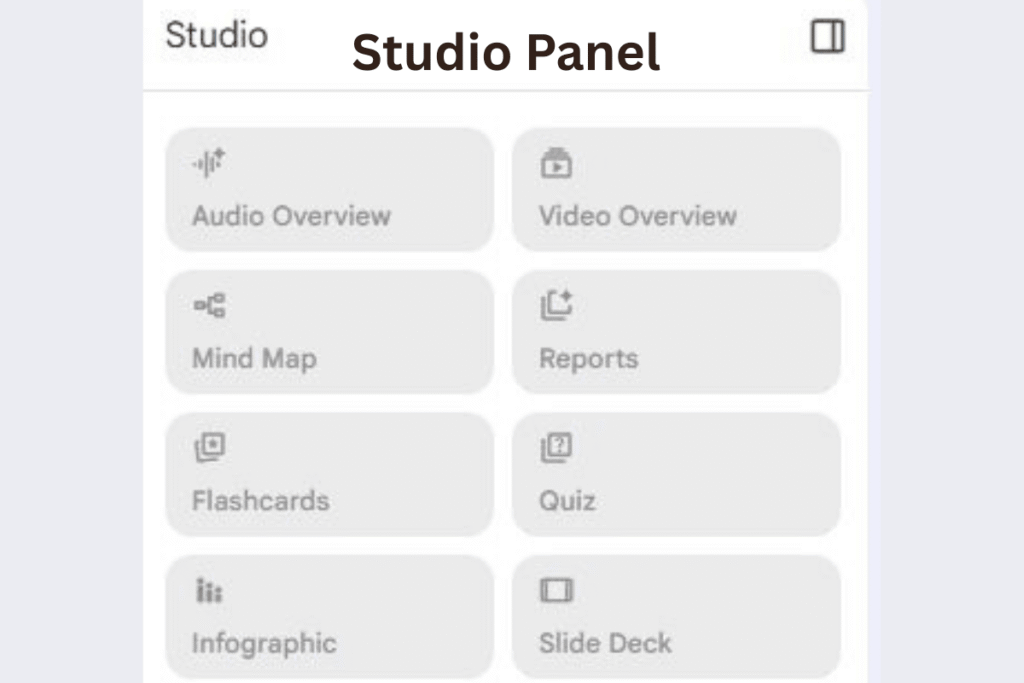
One of the major strengths of the Studio Panel is that one can generate numerous outputs of the same type. You can create multiple Audio overviews in various languages, you can create various report formats to different audiences or you can create several versions of Mind maps about various aspects of your research.
How to Use It
The Studio Panel makes your workflow simpler:
- Find the Studio glass on the right side of your notebook.
- See the four largest tiles of the upper part:
- Audio Overview
- Video Overview
- Mind Map
- Report
- Clicking on any tile will make that type of output.
- History created content that can now be accessed.
- Make several variations by tapping the same tile with various customizations.
- Multitask: Have an Audio Overview and at the same time a Mind Map or a Study Guide.
Everything created is listed in a chronological history at the bottom of the Studio panel and it is simple to control and view what you create.
Beginner Tips
In order to optimize the efficiency of Studio Panel:
Multi-language tactic: Design Audio and Video overviews in other languages to use with international teams or international content delivery.
Outputs based on roles: Produce various forms of reports, which meet the requirements of various team members (executives receive briefing material, team members receive detailed study guides).
Optimization of workflow: begin with a Mind Map to learn the structure, an Audio Overview to learn the material and flashcards to retain knowledge.
Parallel processing: Process several outputs at the same time-they all are running in the background thus saving a lot of time.
The Studio Panel takes NotebookLM past being a mere research tool and makes it a full blown content creation service, letting you create a wide variety of content on a single set of research materials.
Quick Start Guide for Beginners
Step 1: Access NotebookLM
To start with NotebookLM is free, and it does not need to be installed:
- Go to notebooklm.google.com with your web browser.
- Sign on using your Google account.
- You are all ready to begin-no downloads and no installation.
Step 2: Design Your First Notebook
Your initial notebook preconditions organized research:
- Click the New Notebook on the home dashboard.
- Namely your notebook (e.g. Marketing Research Q4 or Biology Exam Prep).
- Insert your original sources with any method that is supported.
- Begin to learn by chatting on your materials.
Step 3: Discover Studio Capabilities
Test the NotebookLM with its high-quality output:
- Audiate your research as a podcast by attempting to create an Audio Overview.
- Make flashcards out of your sources to be actively learned.
- Create a Mind Map to see relationships.
- Test various output types and find out which one suits your requirements.
Step 4: Use Chat Effectively
Take advantage of the improved chat features:
- Individualize your AI by setting custom goals to your notebook.
- Be specific, detailed in asking questions about your sources.
- Expand on conversation history to get deeper into it.
- Note that your chat history is now automatically saved and thus you can continue the conversations at any time.
Best Practices for NotebookLM Success
For Students
Streamline your study and research process:
Organize by subject: To maintain a concentration on materials, make note books in different courses.
Exam preparation plan: Flashcards: memorization, Study Guides: thorough exam review and Audio Overviews: last-minute revision.
Studying on the commute: Prepare Audio Overviews on your mobile phone and listen to it on the commute and transform downtime into a learning activity.
For Researchers
Make your research process streamlined:
Literature reviews: Bibliography Use Deep Research to collect sources, then come up with Mind Maps to show relationships between papers and theories.
Thesis planning: Use Mind Maps to produce detailed maps of how various elements of research interrelate and support your argument.
Documentation Progress: You can write periodic short briefing documents to document your research progress and to discuss your research with your advisors.
For Content Creators
Turn research into a form of entertainment:
Blog post pipeline: Create Deep Research to exploit the information, write the first drafts of the blog posts, and then include your personal point of view and voice.
Multi-format content: Produce Audio Overviews, Video Overviews and written reports based on the same research to achieve the maximum content yield.
Globalization: You can create content using other languages and reach a bigger audience across the globe.
For Professionals
Increase productivity of business:
Preparation of meetings: Prepare briefing documents that summarize pertinent materials ahead of critical meetings.
Competitive Intelligence: Compete strategically with Deep Research.
Stakeholder reporting: Prepare special reports to fulfill various audience requirements (executives, team members, clients)
Common Beginner Mistakes to Avoid
Posting unnecessary materials: It is better to keep a notebook dedicated to a particular subject or project. It is not possible to mix incompatible materials and dilute the work of the AI.
Failure to use custom goals: Use the improved chat by specifying the goals of how you would like the AI to act. An optimally set up notebook leads to a significant enhancement in the quality of response.
No consideration of source quality: Do not forget the rule “garbage in, garbage out.” Quality sources bring about quality outputs. Spoil sources produce low quality.
Failure to experiment with Studio features: Most beginners do not go beyond chat when they want to use Studio features; they do not explore Audio Overviews, Video Overviews, Mind Maps, and reports. Such characteristics tend to be more informative than chat only.
Losing sight of verifying: Although NotebookLM will offer source-grounded replies, it will always be prudent to confirm information by reviewing the original sources, particularly when making critical choices or writing a research paper.
Conclusion
The Top 10 Google NotebookLM Features make NotebookLM a powerful tool for modern learning and research.The updates included Deep Research, enhanced chat with custom goals, audio and video overviews and interactive Mind Maps, which significantly simplifies the process of comprehending complicated information. NotebookLM has even more file support and smarter responses which makes it essential to students, researchers, professionals, or content creators. Begin with simple chat and uploads and proceed with advanced features such as flashcards and Deep Research. NotebookLM provides a smarter, faster and more efficient method of dealing with information with constant updates and future Gemini integration.
FAQs
1. What types of files can I upload to NotebookLM?
You can upload a variety of source types — e.g. Google Docs, Google Slides, PDFs, text / markdown files, web-URLs, copy-pasted text, public YouTube video URLs (with transcripts) and even audio files.
2. Does NotebookLM keep my data private?
A: Yes — uploads remain private unless you explicitly choose to share the notebook. NotebookLM does not use your uploaded data to train its base models.
3. Can I ask NotebookLM questions based on my uploaded documents?
Yes — NotebookLM acts like an AI research assistant: you can query it in natural language to get summaries, explanations, comparisons, or answers grounded in your sources, with inline citations.
4. Does NotebookLM offer audio or visual summaries?
Yes — NotebookLM supports both Audio Overviews (podcast-style narrated summaries) and Video Overviews (slide- or video-style narrated presentations with images/diagrams).
5. Can NotebookLM help create study materials (flashcards, quizzes, study guides)?
Yes — it can generate study aids like flashcards and quizzes, as well as structured outputs like study guides or briefing documents from uploaded content.